Pointing to your music folders
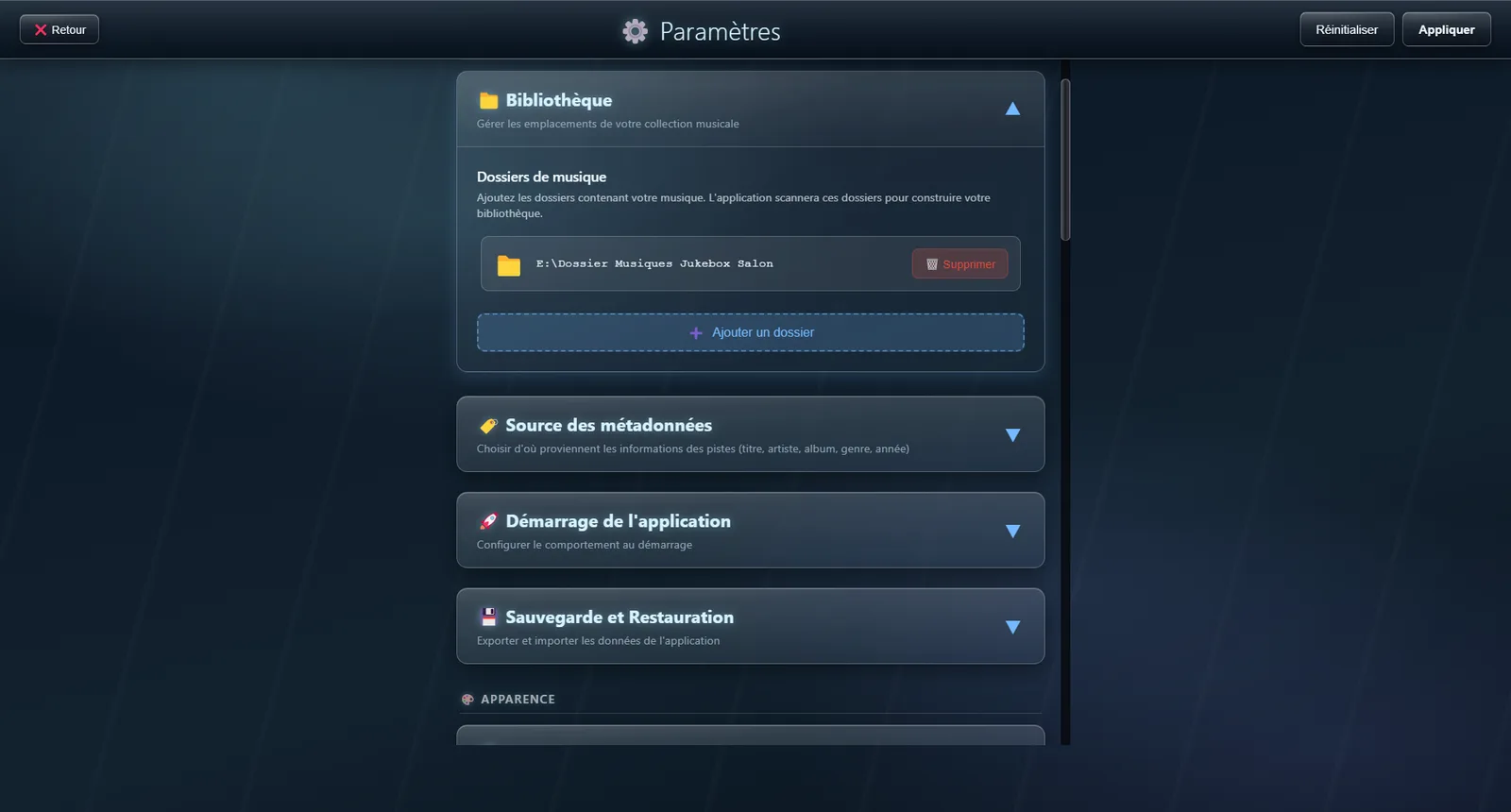
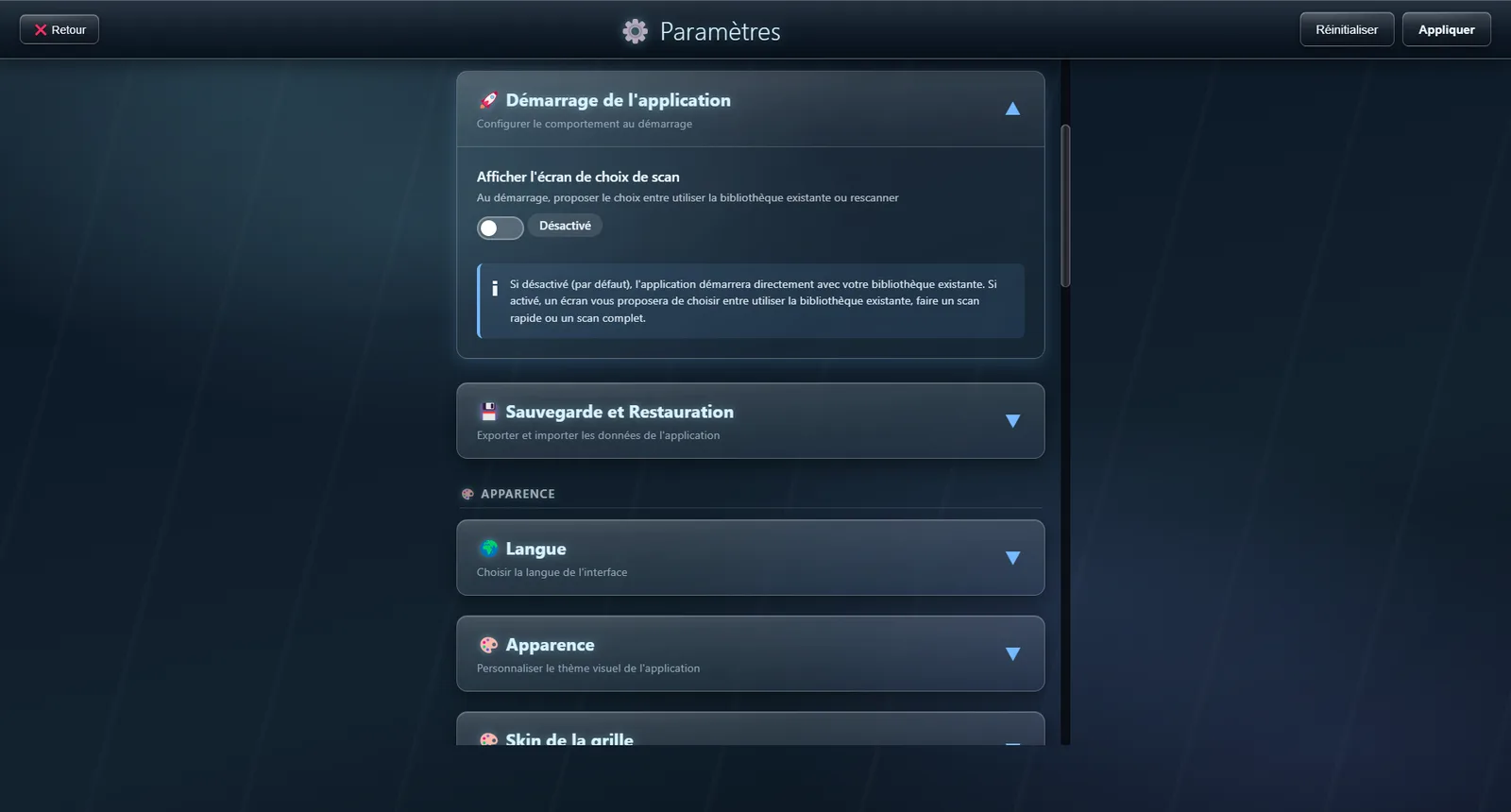
Open the settings, Library section. The Add a folder button opens the file browser: pick the folder holding your music. You can declare several — an internal drive, a USB stick, a network folder — and they will be merged into a single library.
How to organise your files
The rule is simple: top-level folders are always artists, and the folders inside them are their albums. A file placed directly at the root of the music folder is attached to an artist named after the drive. For cover art, drop an image named folder.jpg in the artist or album folder — cover.jpg works too, as does PNG, and the case of the name does not matter.
Running a scan
The scan walks through your folders and collects titles, artists, albums, running times and cover art. There are two kinds: the incremental scan, which only picks up what has changed since last time, and the full scan, which rebuilds everything. Day to day, the incremental scan is enough — it stays fast even on a large collection.
The artist grid
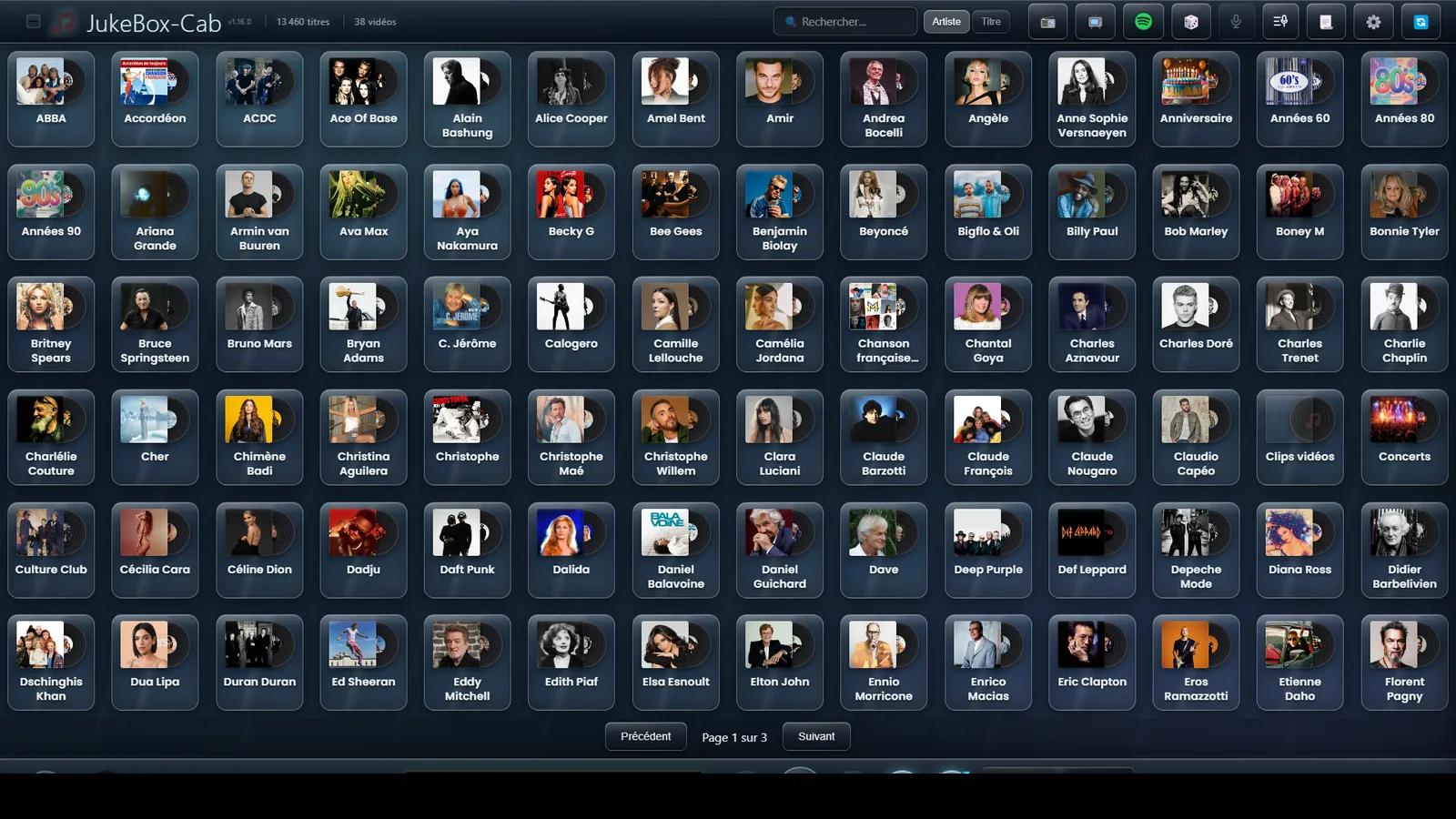
Once the scan is done, your artists appear with their cover art. The header recalls how many tracks and videos were indexed. This is the starting point of all browsing: tapping a cover takes you inside that artist.
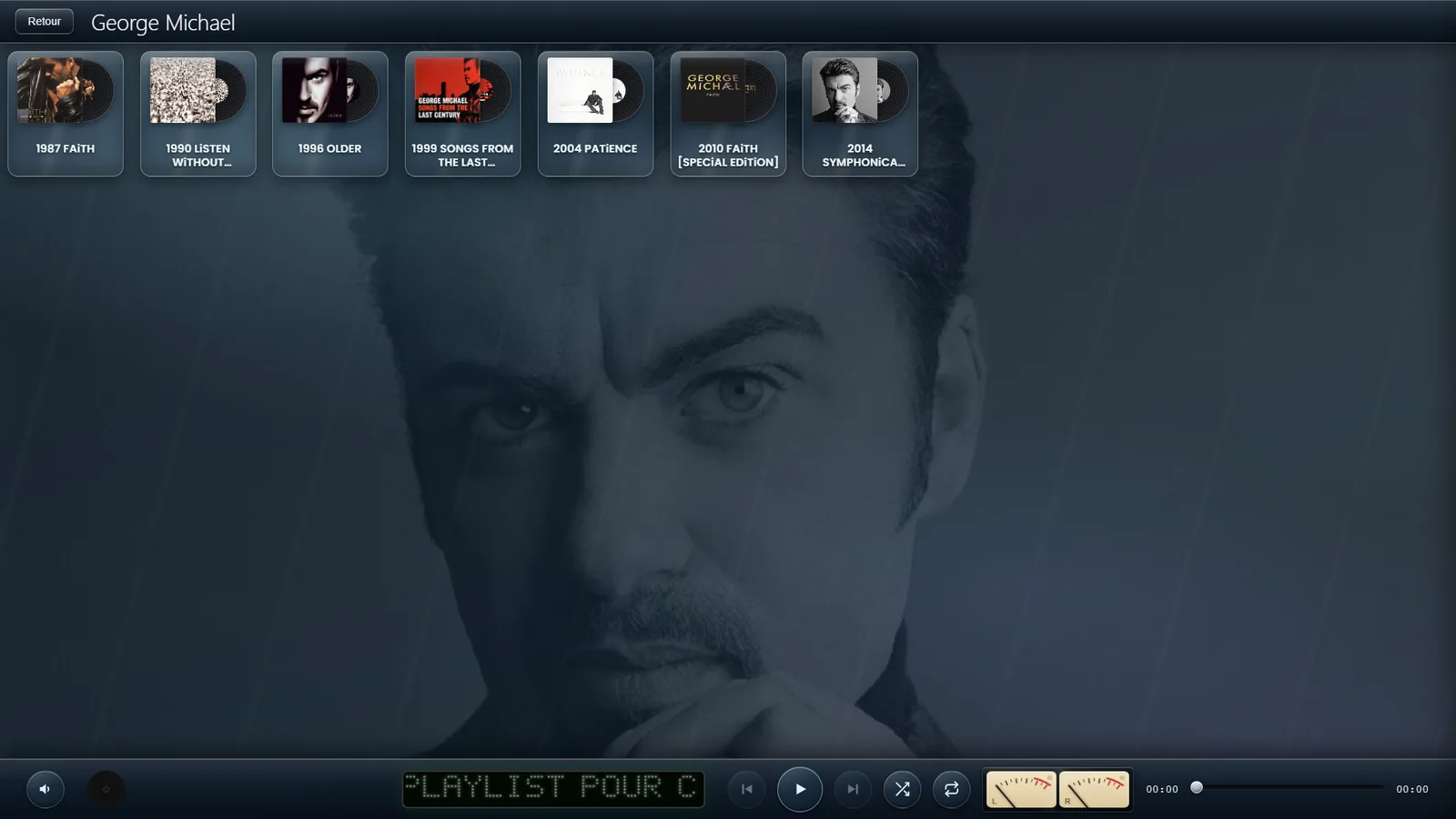
An artist’s albums
Every folder placed under an artist becomes an album. If you have dropped files straight into the artist folder, with no sub-folder, the application takes you directly to the tracks instead of showing you an empty album page.
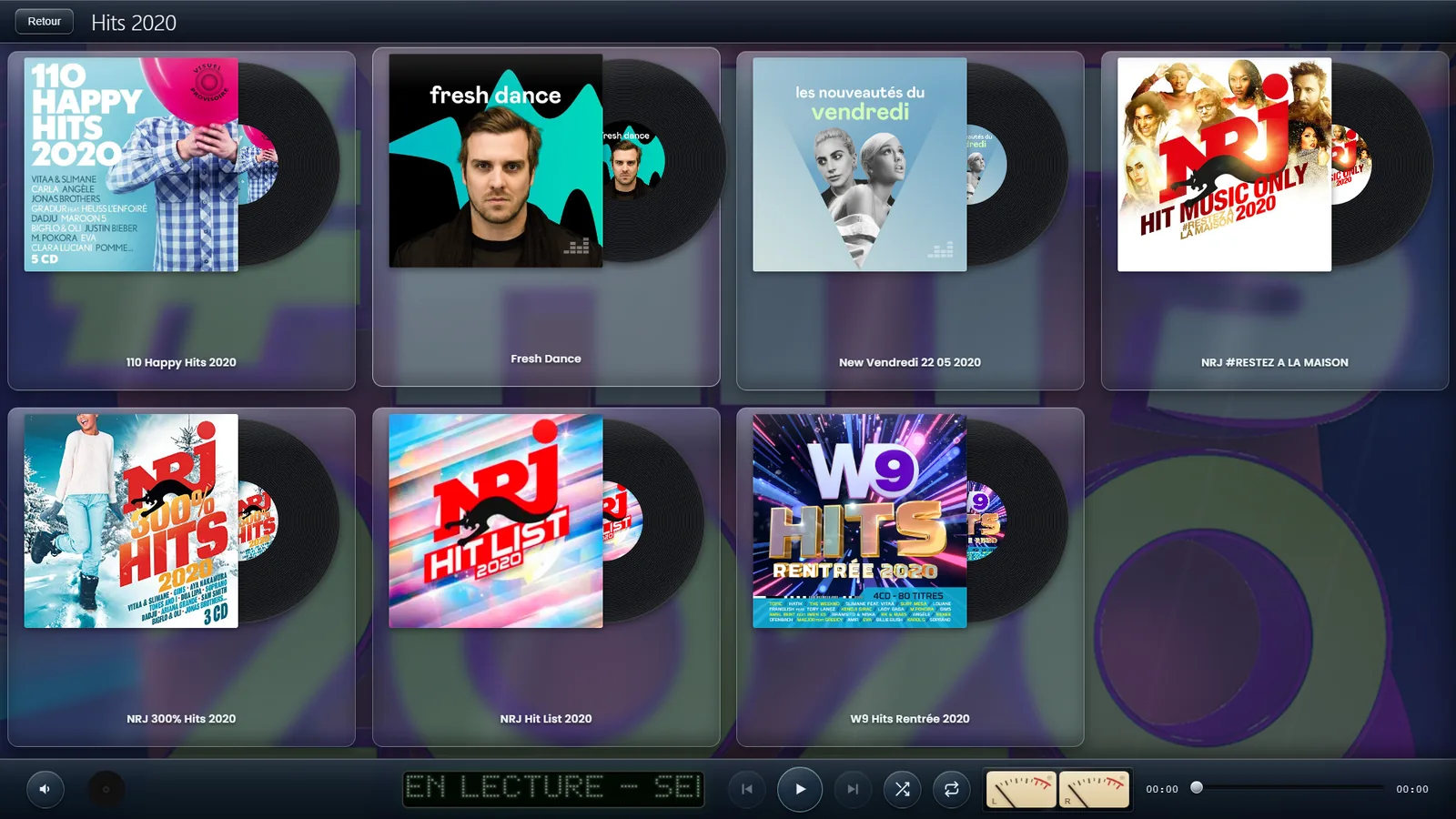
The tracks of an album
Tracks appear in track number order as read from the tags, falling back on the file name. That is what stops an album from running in alphabetical order, where track 10 would come before track 2. Every row carries a + button to send it to the playlist.
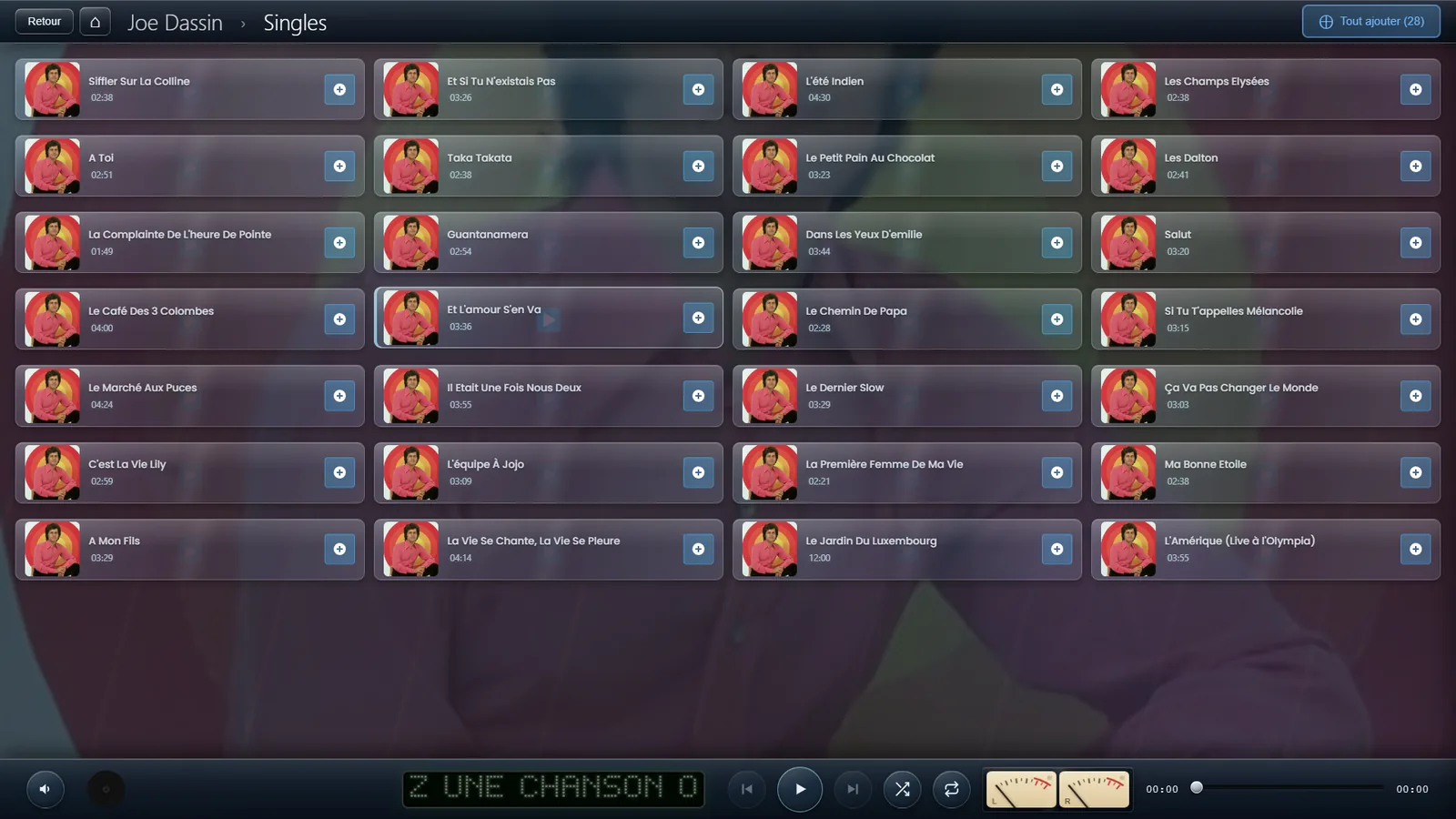
Box sets and complete works
Folders can be nested several levels deep: a complete works filed under Studio, Live and Compilations, each holding its own albums, stays perfectly navigable. A breadcrumb trail at the top of the screen shows where you are and lets you step back up one level.