🎵 First-time setup — the full guide
Follow this guide step by step and your jukebox is ready in minutes
Windows shows a warning the first time you run it
This message is normal and does not mean the file contains a virus: Windows shows it for any program it does not yet recognise. It appears only once, in your system’s language.
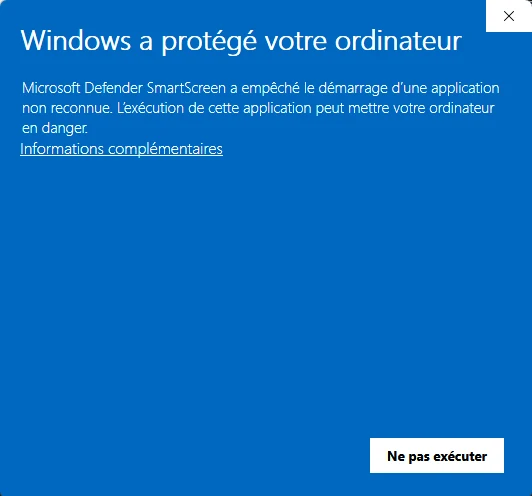
- 1 Click More info, the link below the message text.
- 2 The Run anyway button then appears: click it and the installation starts normally.
Why this message? Windows does not show it for programs signed with a publisher certificate. That certificate costs several hundred euros and has to be renewed every year. JukeBox-Cab is free and will stay free: that money would go into a certificate rather than into the software.
Step 1 : Welcome to JukeBox-Cab
Setting up your jukebox for the first time
On first launch, JukeBox-Cab walks you through setting up your music library. This step matters: everything else depends on it.
Step 2 : Adding your music folders
Point to where your music lives
Click '📁 Add a folder' and pick the places holding your music. You can add several:
- Local hard drives (C:\, D:\, and so on)
- External USB drives
- Network folders (NAS)
- Several locations at once
💡 Tips
- 💡 Create one sub-folder per artist: that folder gives the artist its name and its tile
- 💡 Sub-folders inside an artist become albums
- 💡 Drop a 'folder.jpg' image in your folders for the cover art
⚠️ The essential rule: top-level folders are your artists
JukeBox-Cab reads every top-level folder as an artist, and its sub-folders as albums. Files sitting straight at the root of the chosen folder are not lost: they are gathered under an artist named after the folder — or after the volume label, for a drive root.
✅ This works
D:\Music ├── Queen/ │ ├── 01 - Bohemian Rhapsody.mp3 │ └── 02 - We Will Rock You.mp3 ├── ABBA/ │ └── 01 - Dancing Queen.mp3 └── Daft Punk/ └── 01 - Get Lucky.mp3
✅ This works too
C:\
├── Queen/
│   └── A Night at the Opera/
│       └── 01 - Bohemian Rhapsody.mp3
└── ABBA/
    └── Gold/
        └── 01 - Dancing Queen.mp3
⚠️ Everything loose at the root
D:\Music ├── Bohemian Rhapsody.mp3 ├── Dancing Queen.mp3 ├── Get Lucky.mp3 └── Imagine.mp3
⚠️ Mixed case
D:\Music ├── Queen/ │ └── 01 - Bohemian Rhapsody.mp3 ✅ artist Queen ├── ABBA/ │ └── 01 - Dancing Queen.mp3 ✅ artist ABBA ├── Get Lucky.mp3 ⚠️ artist “Music” └── Imagine.mp3 ⚠️ artist “Music”
❌ One level too many
D:\Music ├── Rock/ │ └── Queen/ │ └── 01 - Bohemian Rhapsody.mp3 └── 80s/ └── ABBA/ └── 01 - Dancing Queen.mp3
🎵 Audio formats
🎬 Video formats
Step 3 : The first scan of your library
Your files indexed automatically
Once your folders are added, click '🚀 Start the jukebox'. The scanner will:
🔄 How it goes :
- Walk through all your folders
- Pick up audio and video files on its own
- Read the tags (title, artist, album, running time)
- Find the album artwork (folder.jpg/png)
- Build a local SQLite database
- Organise everything as Artists → Albums → Tracks
Step 4 : You are set
Your jukebox is up and running
Once the scan is done, your organised library is right there. Browse your artists and albums, and build your first playlists.
🚀 Next steps :
📂 Recommended folder structure
Organise your files for a better experience
Keep one folder per artist: that is how the app builds its grid. Files sitting straight at the root are read fine, but they all end up under a single artist named after the folder, with no album.
- 🟢 Keep one folder per artist: that is the structure the app expects
- 🟠 Files sitting at the root are gathered under an artist named after the folder
- 🟢 Every top-level sub-folder is treated as an artist
- 🟢 Folders one level deeper are treated as albums
Folder you set up (e.g. D:\Music) ├── Queen/ ← subfolder = artist │ ├── folder.jpg ← artist picture (optional) │ ├── A Night at the Opera/ ← sub-subfolder = album │ │ ├── folder.jpg ← album cover (optional) │ │ ├── 01 - Bohemian Rhapsody.mp3 │ │ └── 02 - Love of My Life.mp3 │ └── Greatest Hits/ │ └── ... ├── ABBA/ ← another artist │ └── Gold/ │ └── 01 - Dancing Queen.mp3 └── Videos/ └── Queen - Live Aid 1985.mp4
💡 Good habits
- Use 'folder.jpg' or 'folder.png' for the artwork
- Name your files consistently (for example '01 - Title.mp3')
- ID3 tags are read automatically
Troubleshooting
Answers to the usual problems
❓ The cover art does not show
What to try:
- Check that the 'folder.jpg' or 'folder.png' files are there
- Make sure the images are not damaged
- Run a library scan again
❓ The scan is very slow
What to try:
- That is normal for a large collection — be patient
- Check that the drive is not asleep
- Later scans are faster
❓ No music found after the scan
What to try:
- Check that your files sit in sub-folders, one per artist: left at the root, they all end up under a single artist named after the folder
- Right: D:\Music\Queen\song.mp3 (Queen is a subfolder)
- Better avoided: D:\Music\song.mp3 (a file at the root → gathered under “Music”, with no album)
- See the Setup Guide for the recommended folder structure
❓ Some files are not picked up
What to try:
- Check the format: MP3, FLAC, WAV, AAC or OGG for audio, MP4 or MKV for video
- Make sure the files are not damaged
- Check the folder permissions
- If the files sit at the root of the chosen folder, they appear under an artist named after that folder rather than under their own artist
❓ Video does not appear on the second screen
What to try:
- Set the video screen under Settings → Screens
- Switch on 'Open the video window automatically'
- Try the 'Test the video window' button
🎉 You are ready
Your JukeBox-Cab is set up. Enjoy your music like never before.
Need a hand? Have a look at our tips section