Adding a track
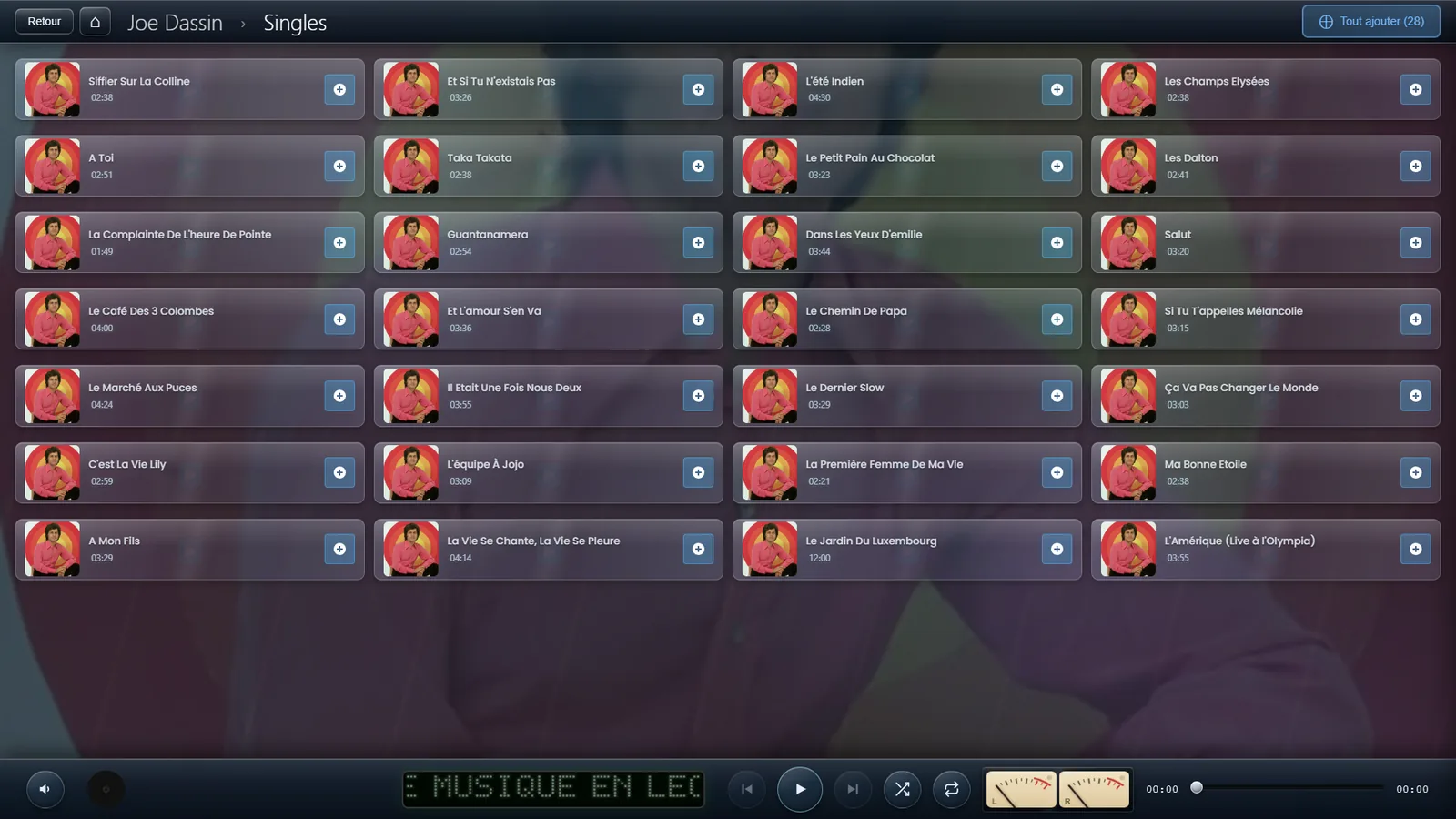
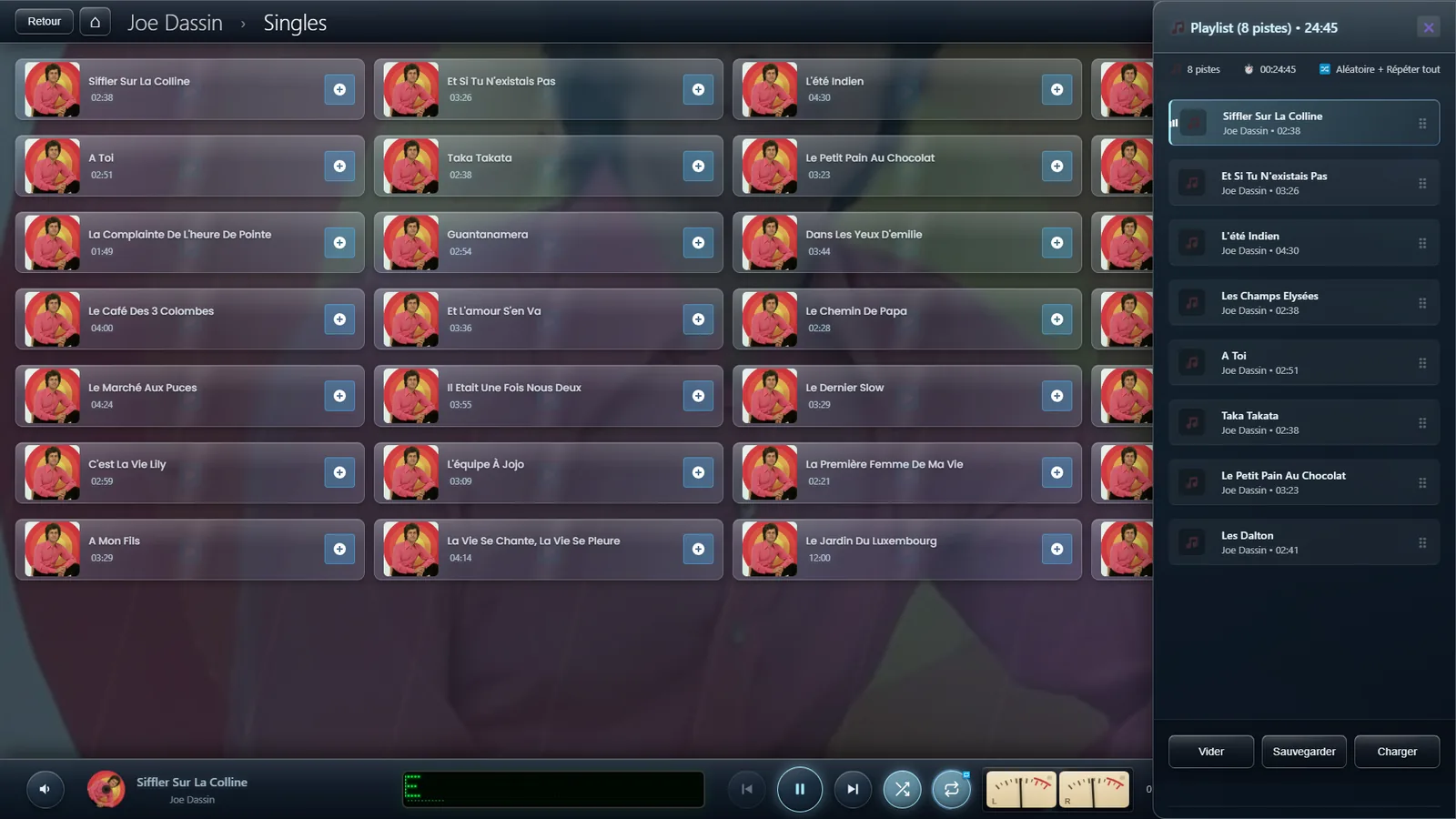
Open an artist, then an album: every track carries a + button on its right. One tap sends it to the end of the playlist. The cover then flies towards the playlist button in the top right corner — visual confirmation that the track was taken into account, without having to open the panel.
The playlist panel
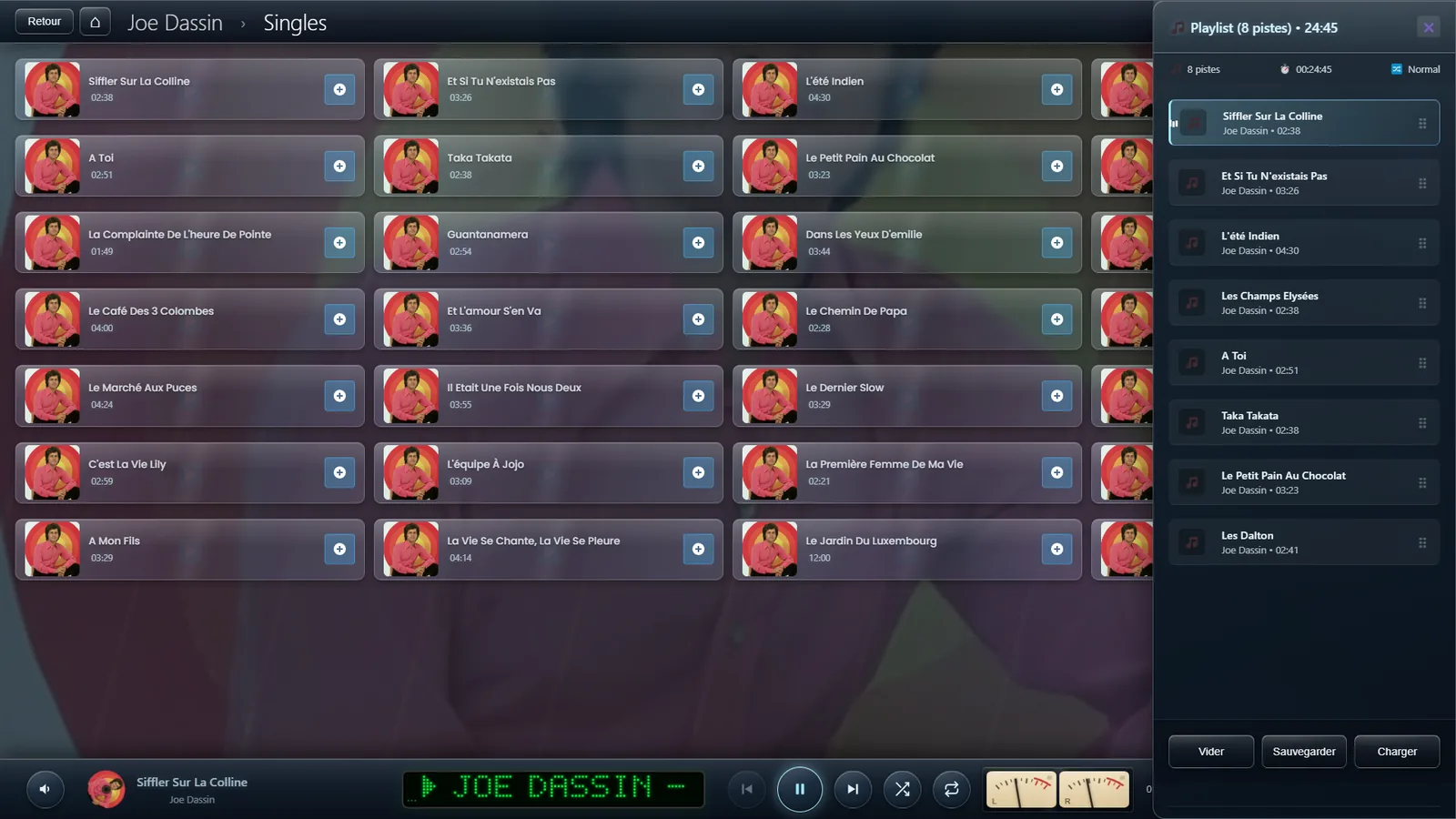
The button in the top right corner opens and closes the panel. It shows the full queue, headed by the number of tracks and the total running time — handy to know whether your selection will last until the end of dinner. The track currently playing is marked by a small animated equaliser.
Changing the order
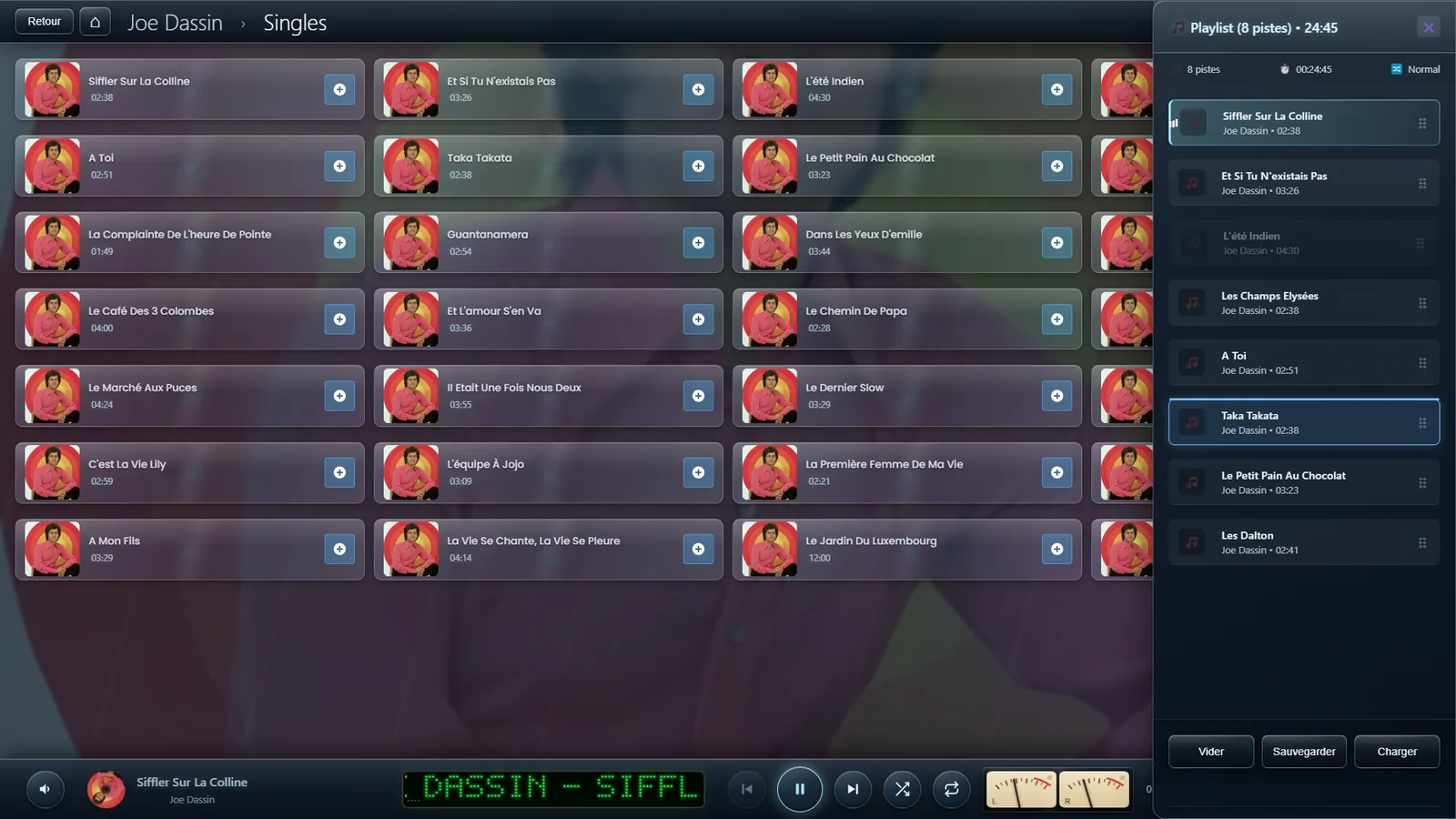
Every row carries a handle on its right. Grab it and drag the row where you want it — with a finger on a touchscreen just as with a mouse. The track currently playing is not interrupted, and what follows adapts to the order you have just set.
Saving a playlist
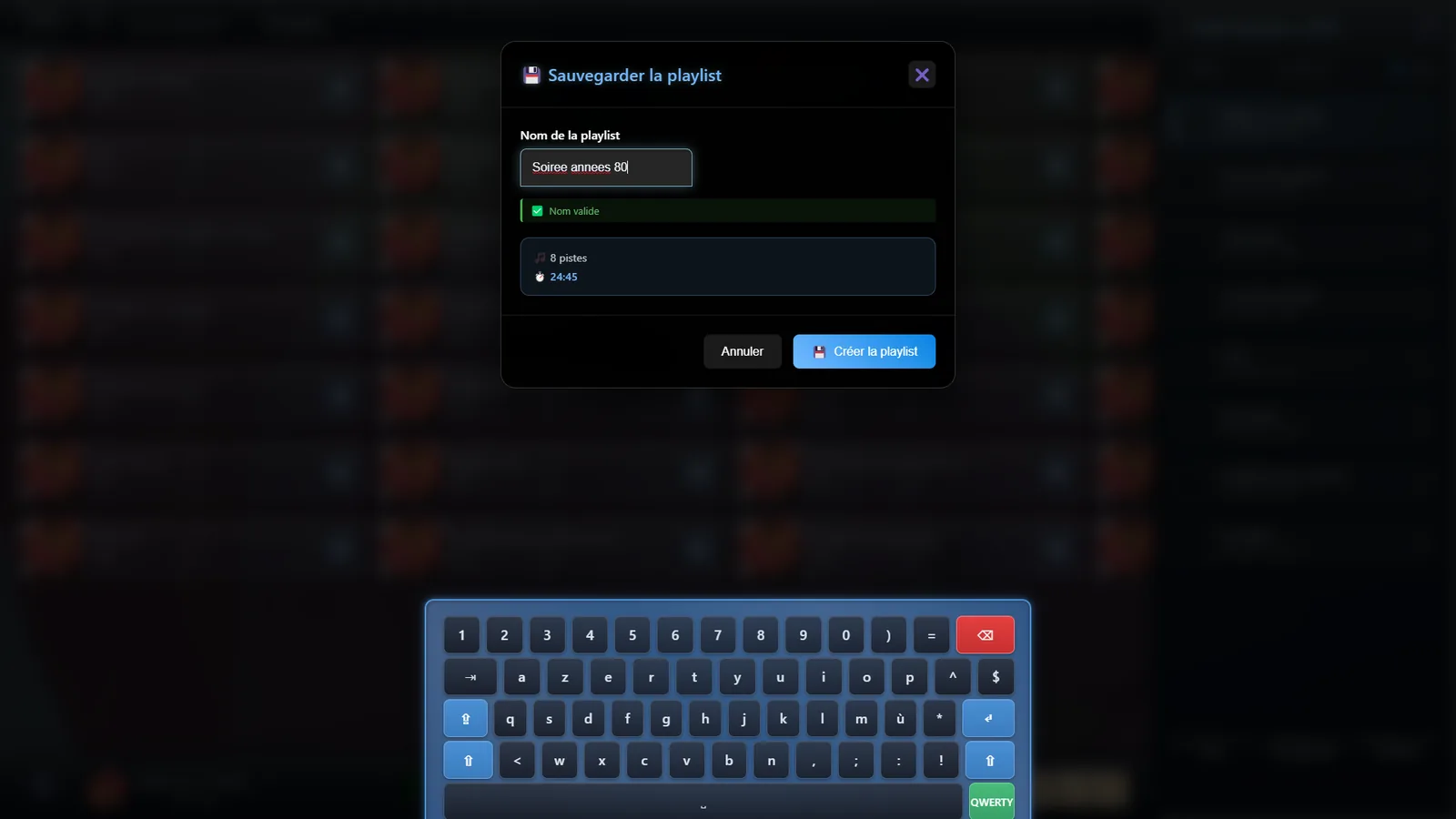
The Save button asks for a name and keeps the selection as it stands. The touch keyboard opens on its own, so no physical keyboard is needed on a cabinet. The window recalls the number of tracks and the running time before you confirm.
Finding a playlist again
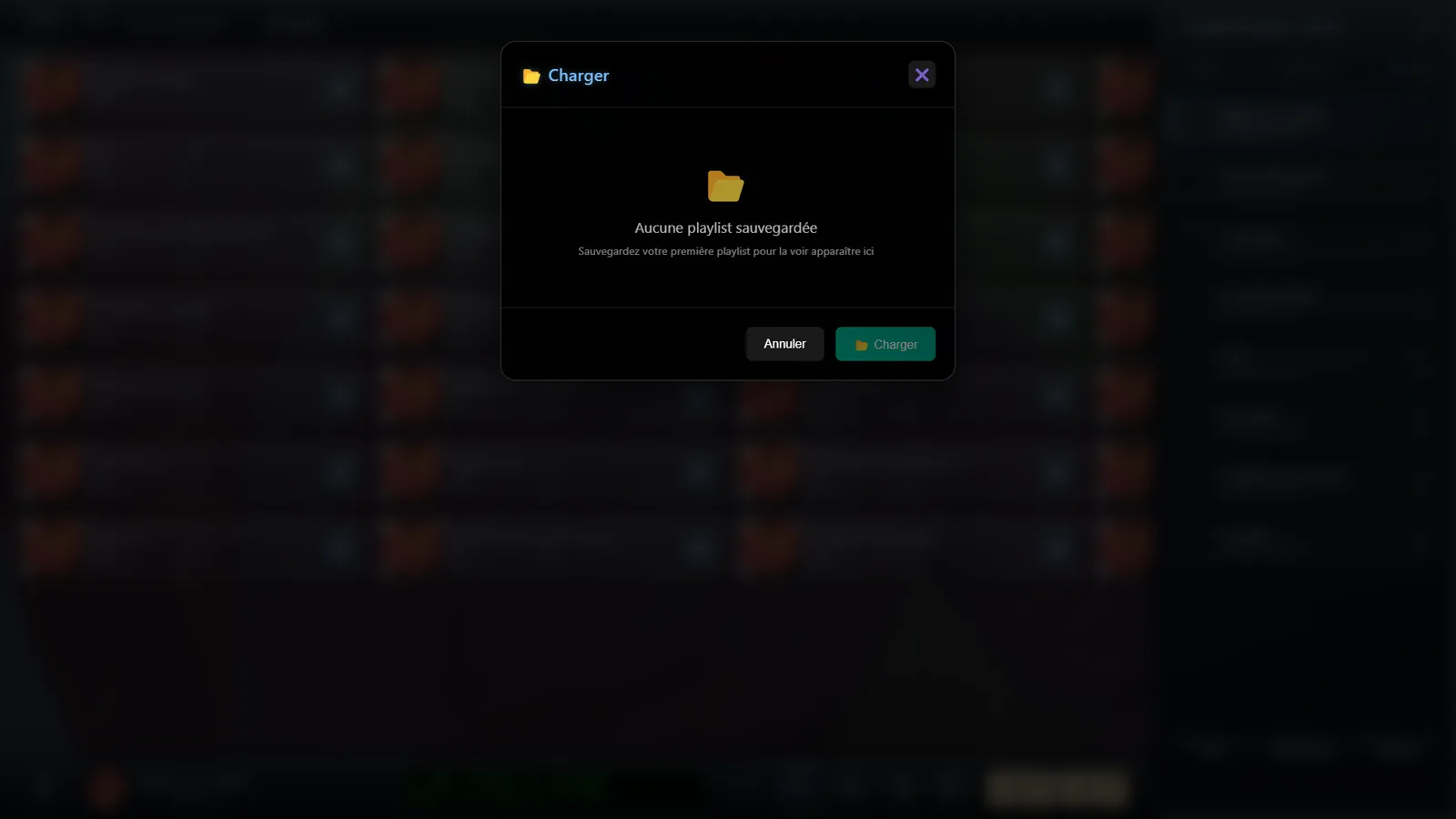
The Load button lists your saved selections. Pick one and it replaces the current playlist. Your playlists stay available from one session to the next: they survive closing the application.
Shuffle and repeat
Two buttons on the player bar control playback. Shuffle mixes the order while avoiding two tracks by the same artist back to back whenever it can. Repeat cycles through three states: off, repeat the whole playlist, then repeat the current track alone — the last one shows a “1” on the button.
Clearing the playlist
The Clear button empties the queue after confirmation. Your saved playlists are left untouched: only the current selection is cleared.