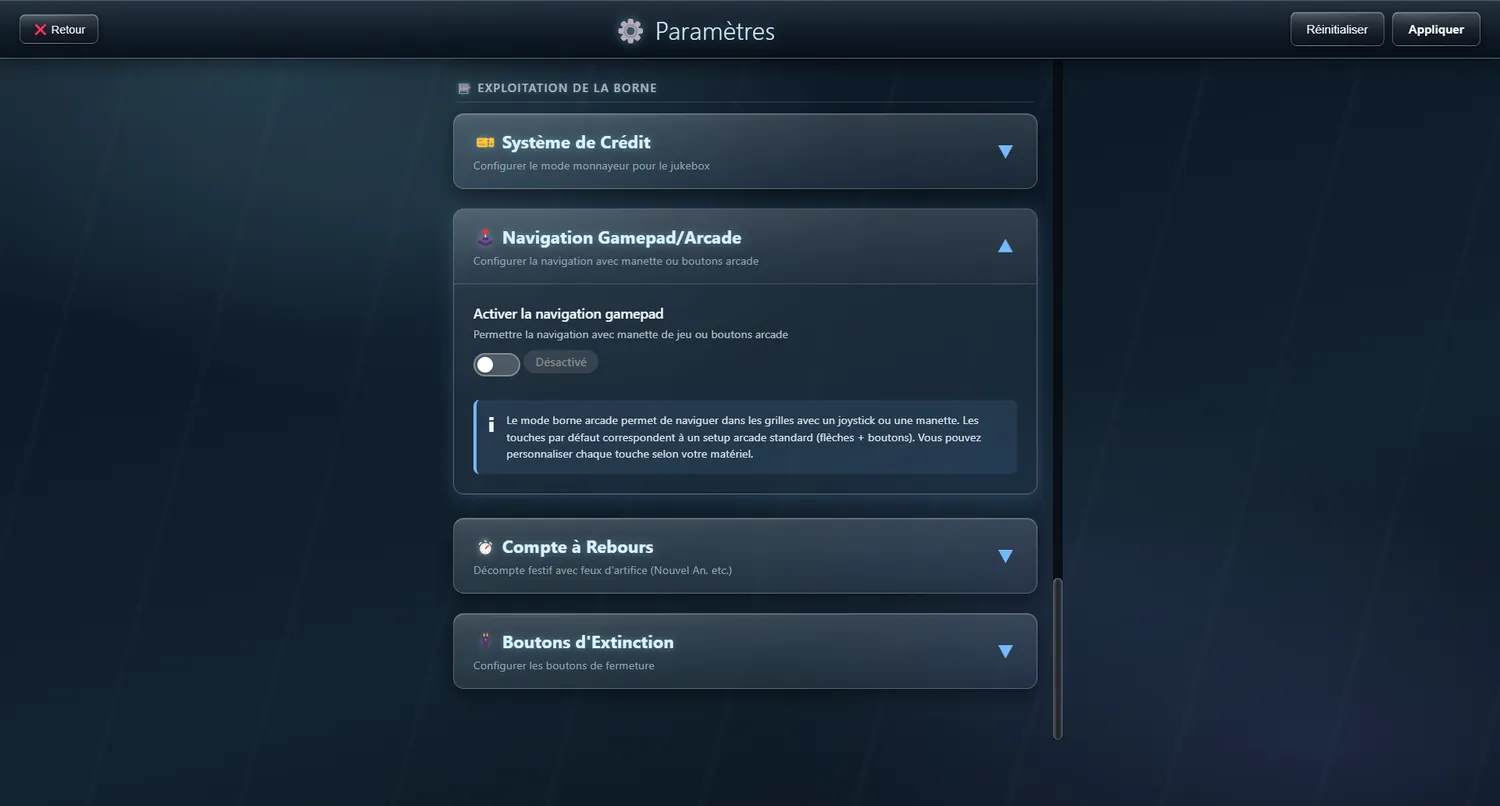
Shutdown, close and minimise
Control how the cabinet is shut down
The control buttons offer three distinct things: shut the PC down, quit JukeBox-Cab and go back to Windows, or minimise the application to the taskbar.
✨ What it gives you
- Three separate buttons, so you decide
- Shut the PC down straight from the interface
- Back to Windows without turning the PC off
- Quick minimise (button at the top left)
- Each one switched on or off in the settings
- Clear, recognisable icons
- Safety: a confirmation before shutting down
🔧 Modes
Shut the PC down
Turns the computer off completely
Quit JukeBox-Cab
Closes the application and goes back to Windows
Minimise the application
Puts JukeBox-Cab down in the Windows taskbar
🔄 How it works: Three buttons are available: minimise at the top left, and the PC shutdown and Quit buttons in their usual place. Each one asks for confirmation, minimise aside.
✨ Ideal for:
- Dedicated arcade cabinets (shut the PC down)
- Home use (quit to Windows)
- Doing other things (minimise to reach another app)
- Public installations
- Avoiding the keyboard and mouse altogether
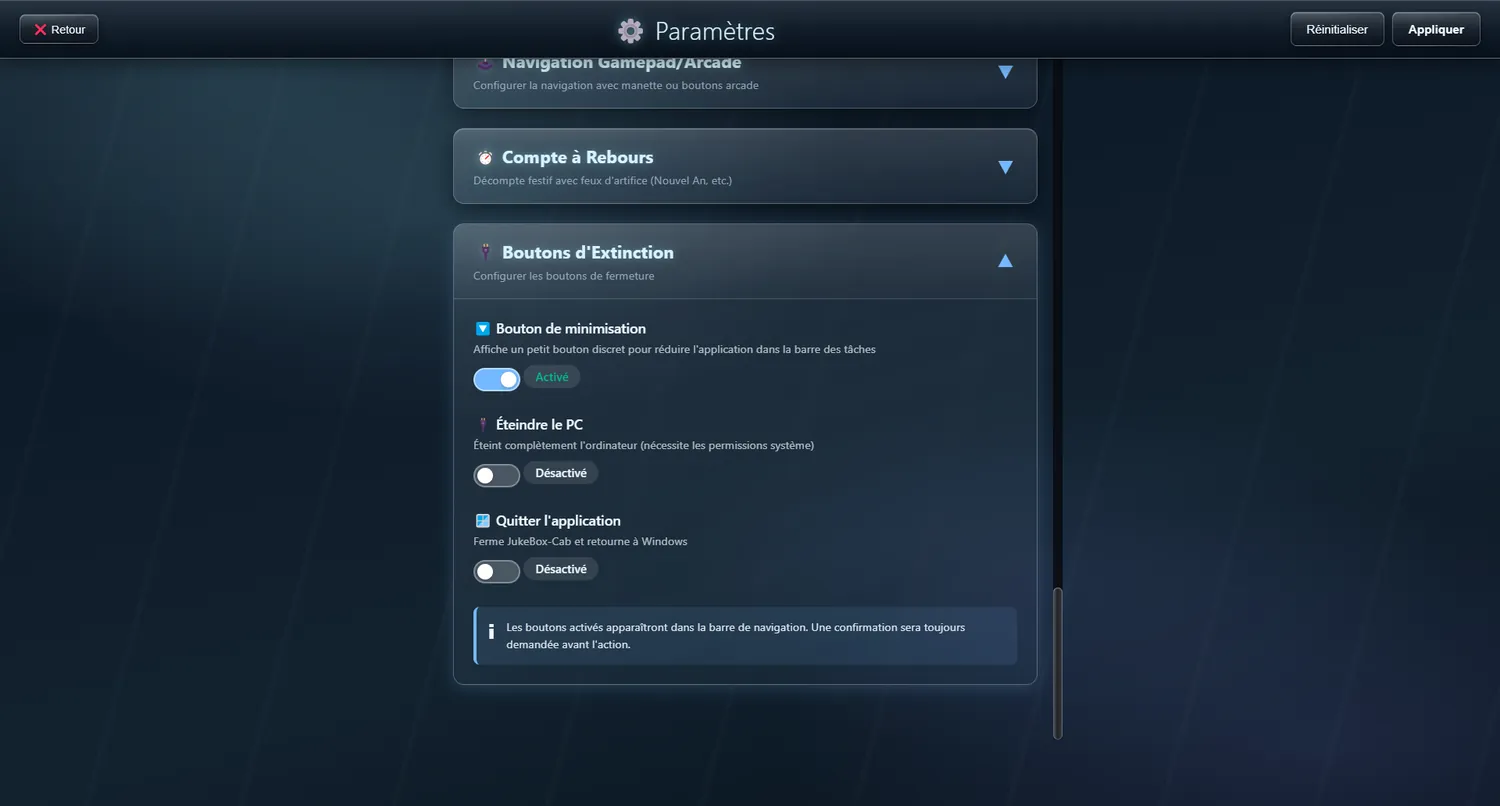
Arcade cabinet mode
Browse with a joystick and arcade buttons
Arcade cabinet mode lets you move around the grids with a joystick or a gamepad. The default keys match a standard arcade setup (stick plus buttons), and you can remap every one of them to your own hardware.
✨ What it gives you
- Browsing without mouse or keyboard
- Every button can be remapped
- Works with any kind of arcade controller
- An interface made for directional navigation
- Your own layouts are saved
- All custom keys are recognised properly (fixed in v1.13.0)
🔄 How it works: Turn arcade mode on in the settings. Part of the interface then answers to your own controls: the keys are caught and matched to the actions they stand for.
✨ Ideal for:
- Arcade cabinets
- A physical retro jukebox
- Games rooms or bars with a music cabinet
- Use without the usual peripherals