Switching the web radios on
Web radios are off when you install: start by enabling them in the settings, Web Radios section. A radio button then appears in the top bar, next to the library.
The stations page
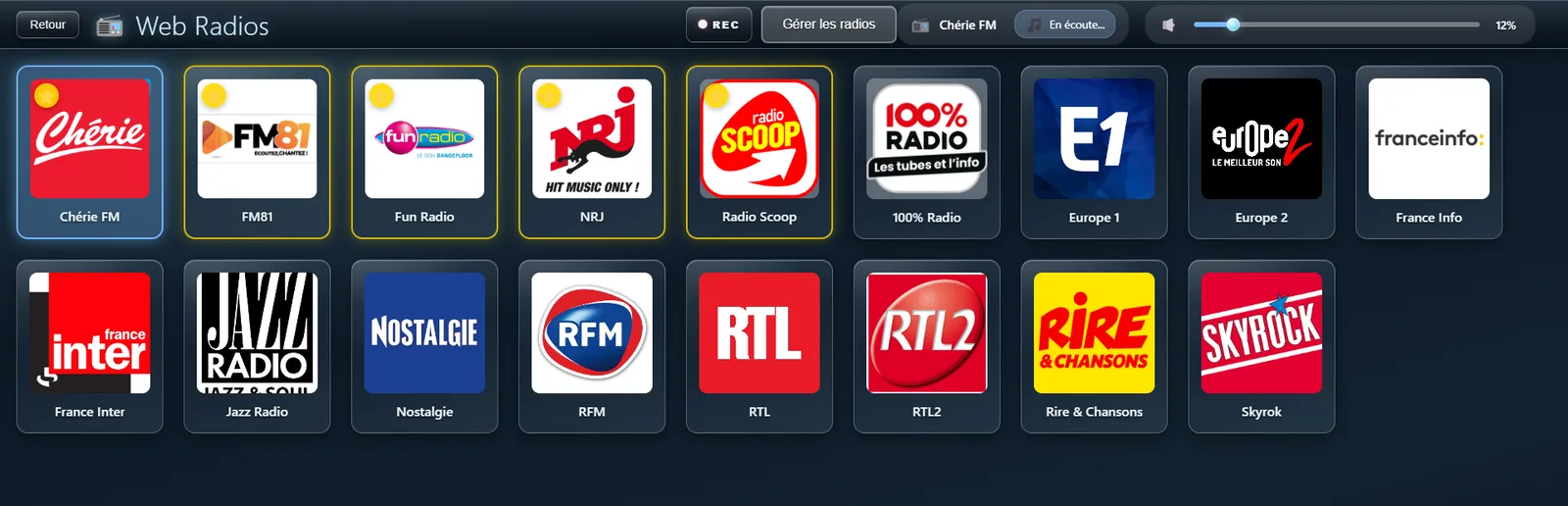
The radio button opens the stations page. Each appears with its logo: one tap starts it, another stops it. The music from your library pauses on its own — the two never play at once. Favourites come first, marked with a star.
Adding your stations
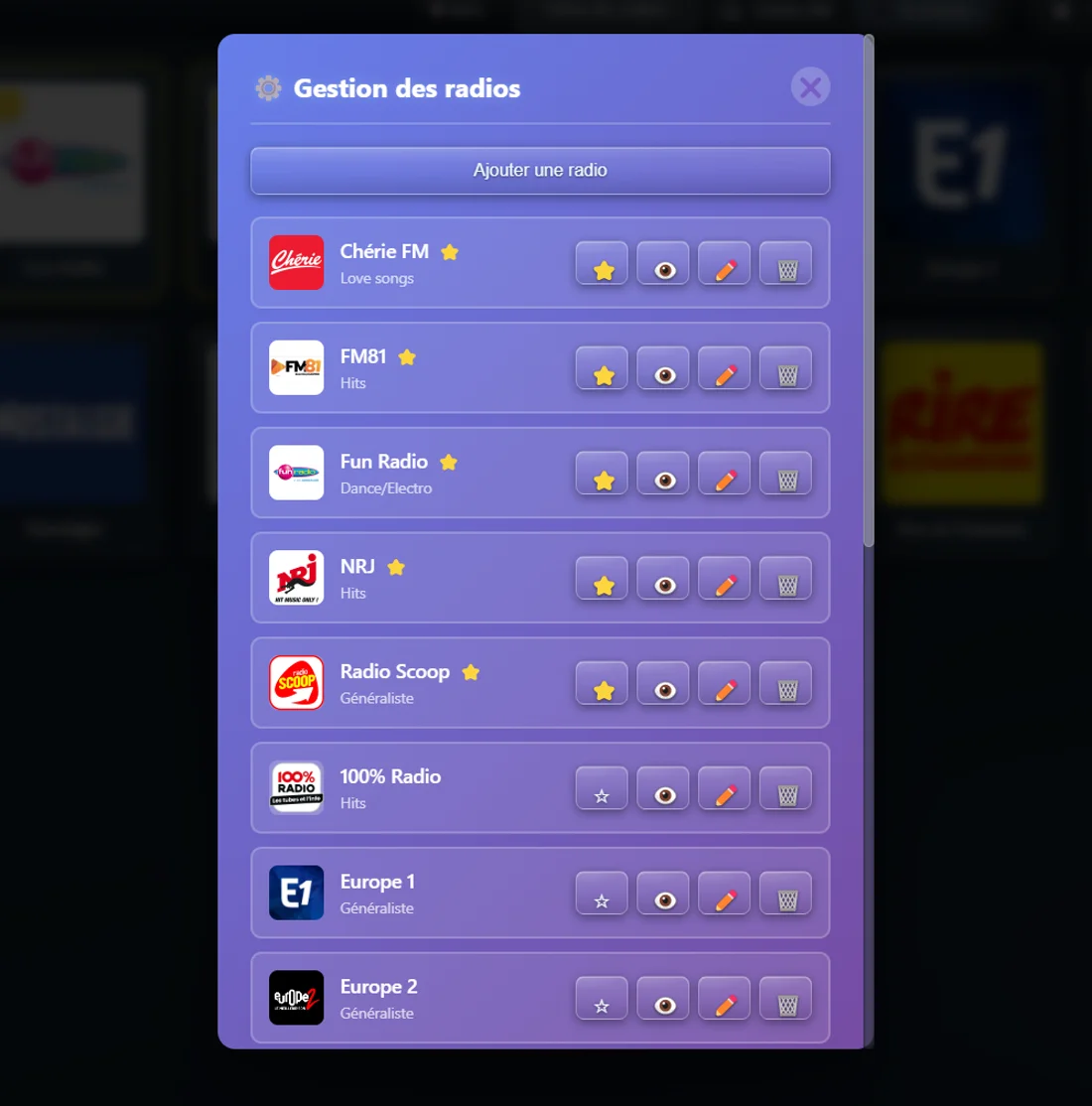
The list starts out empty: it is yours to build. The Manage stations button opens the management window, and Add a station the form to fill in. Two fields are required, the name and the stream address; a genre, a description and a logo of your choosing are optional. The stream address is the one the station publishes for listening in a media player, not the address of its website.
What is playing right now
When a station announces the current track, its title appears at the top of the window and refreshes by itself while you listen. Not all of them do: some send only their own name, others nothing at all. That is the station's doing, not the application's.

Sorting, editing, removing
In the management window, each station carries four buttons. The star makes it a favourite, so it comes first in the grid. The eye sets it aside without erasing it: it leaves the grid and comes back whenever you want — handy for a station that has stopped working, without losing its address. The pencil reopens its entry, the bin deletes it.
Recording a broadcast
The REC button records what you are listening to into an audio file. One tap starts, another stops. Recording also stops by itself if the radio is paused, if the stream drops, or if you close the window: no file keeps growing behind your back.
On the second screen
If your cabinet has two screens, the second one shows the station logo and name while you listen. The stations page stays on the first, so you can keep switching without hiding anything from the room.