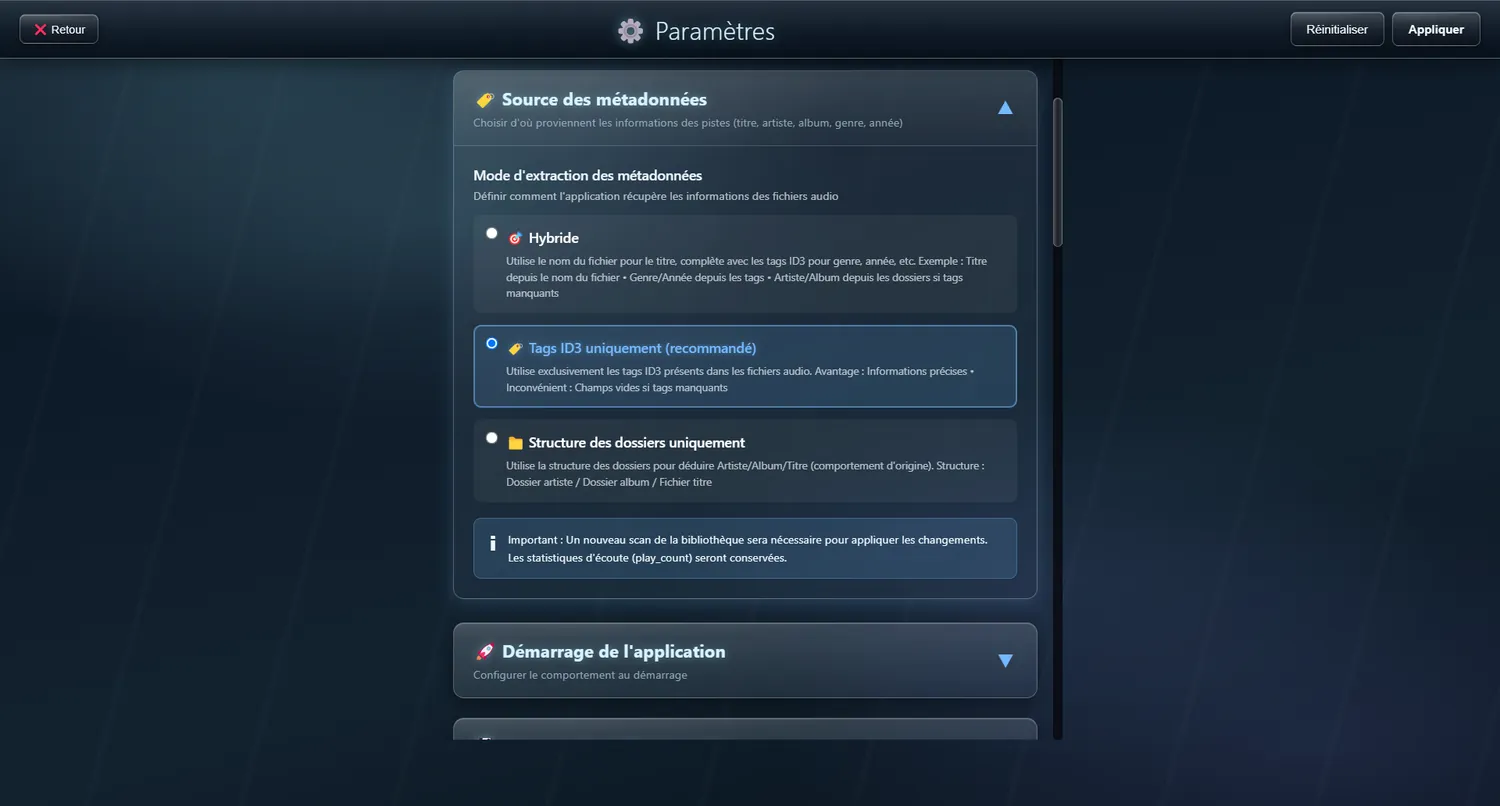
Automatic scanner
Your collection indexed on its own
The scanner walks through your folders and pulls out everything it needs to organise your library.
✨ What it gives you
- Artists, albums and tracks found automatically
- ID3 tags read (title, artist, duration, year)
- Album artwork picked up on its own
- Many audio and video formats supported
- Subfolders handled sensibly (CD1, CD2, and so on)
⚡ What you can do
Full library scan
Start a complete scan again
When to use it: When you want to wipe the whole database; the play counts go back to zero
Partial library scan
Scans only what has changed or been added
When to use it: After adding new files, or making changes
Audio
Video
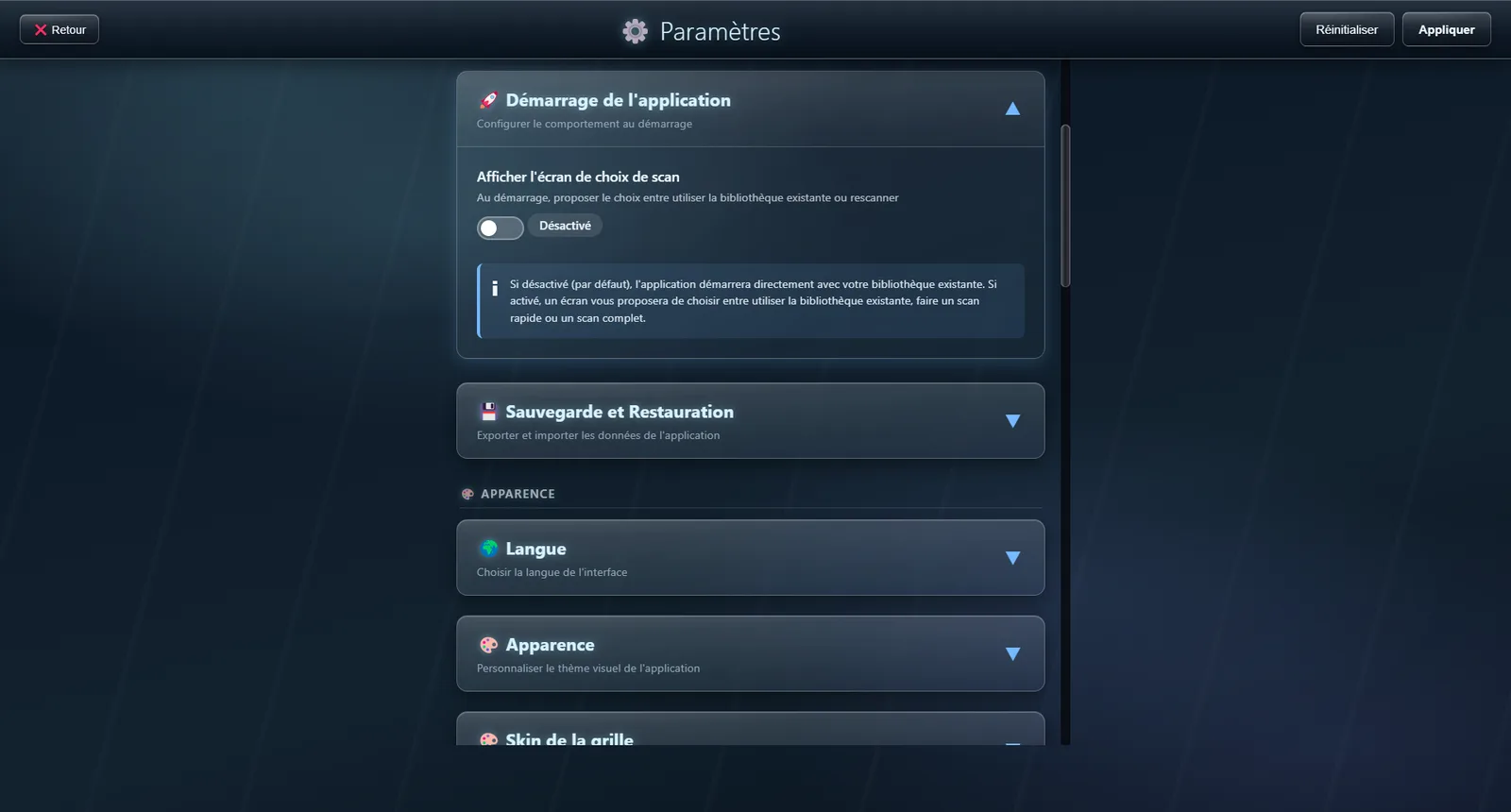
Several sources
Internal drive, USB stick or network folder, merged into one library
Add as many folders as you need, whether local, on external drives or on the network.
✨ What it gives you
- Several hard drives supported
- External USB drives
- Network folders (NAS)
- Windows UNC paths (\\server\share)
- Sources added or removed on the fly
- A collection spread over several drives
- Music on a central NAS
- An external drive for the music videos
- Sorted by genre or by period
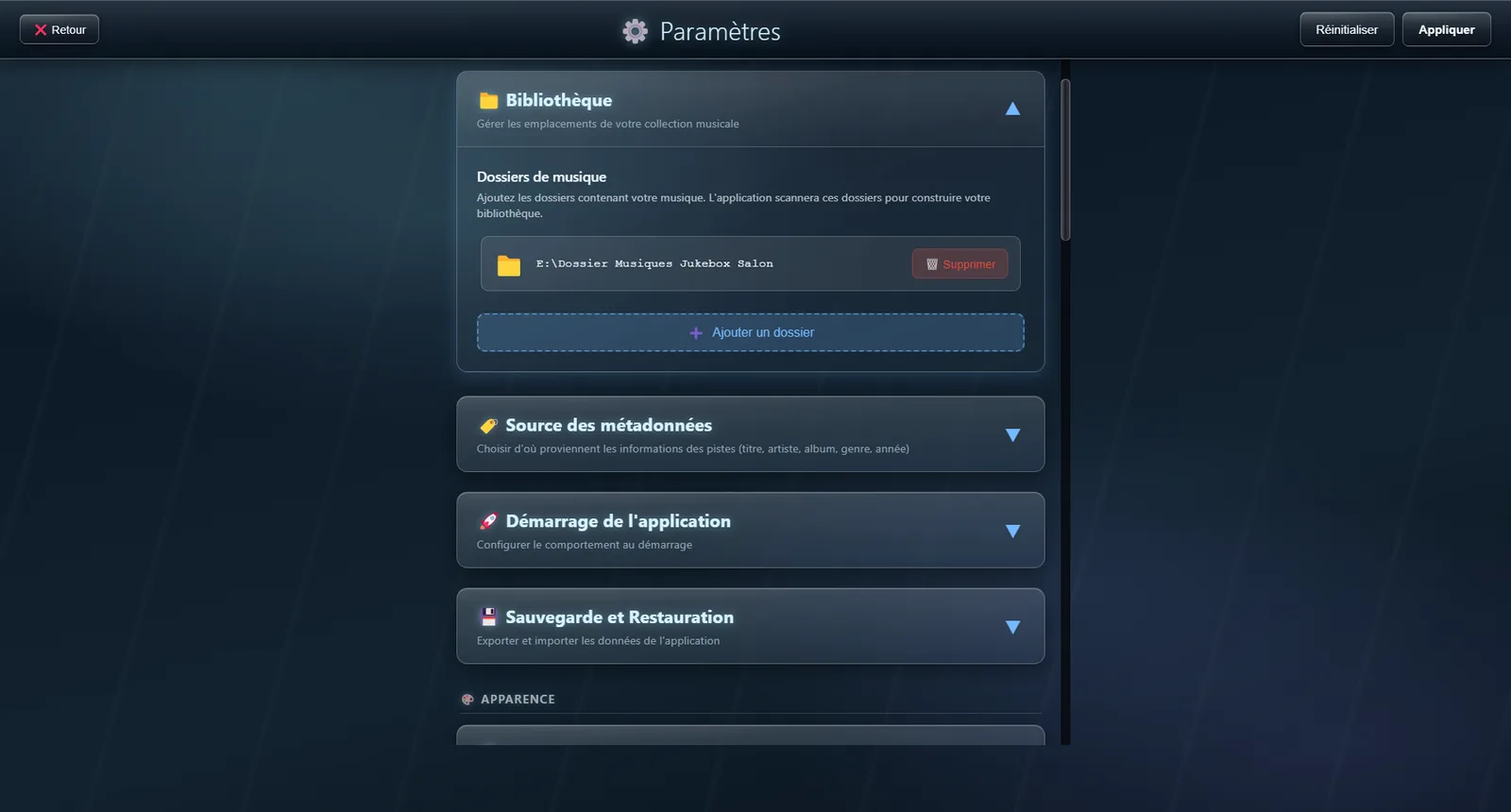
Where the information comes from
Choose between the file tags and the folder names
Three ways of reading the information in your files, whichever you prefer.
🔧 Modes
Hybrid
Goes by the folder tree, falling back on ID3 tags
ID3 tags only Recommended
Ignores how the folders are arranged
Folder structure
Goes by the folder tree alone
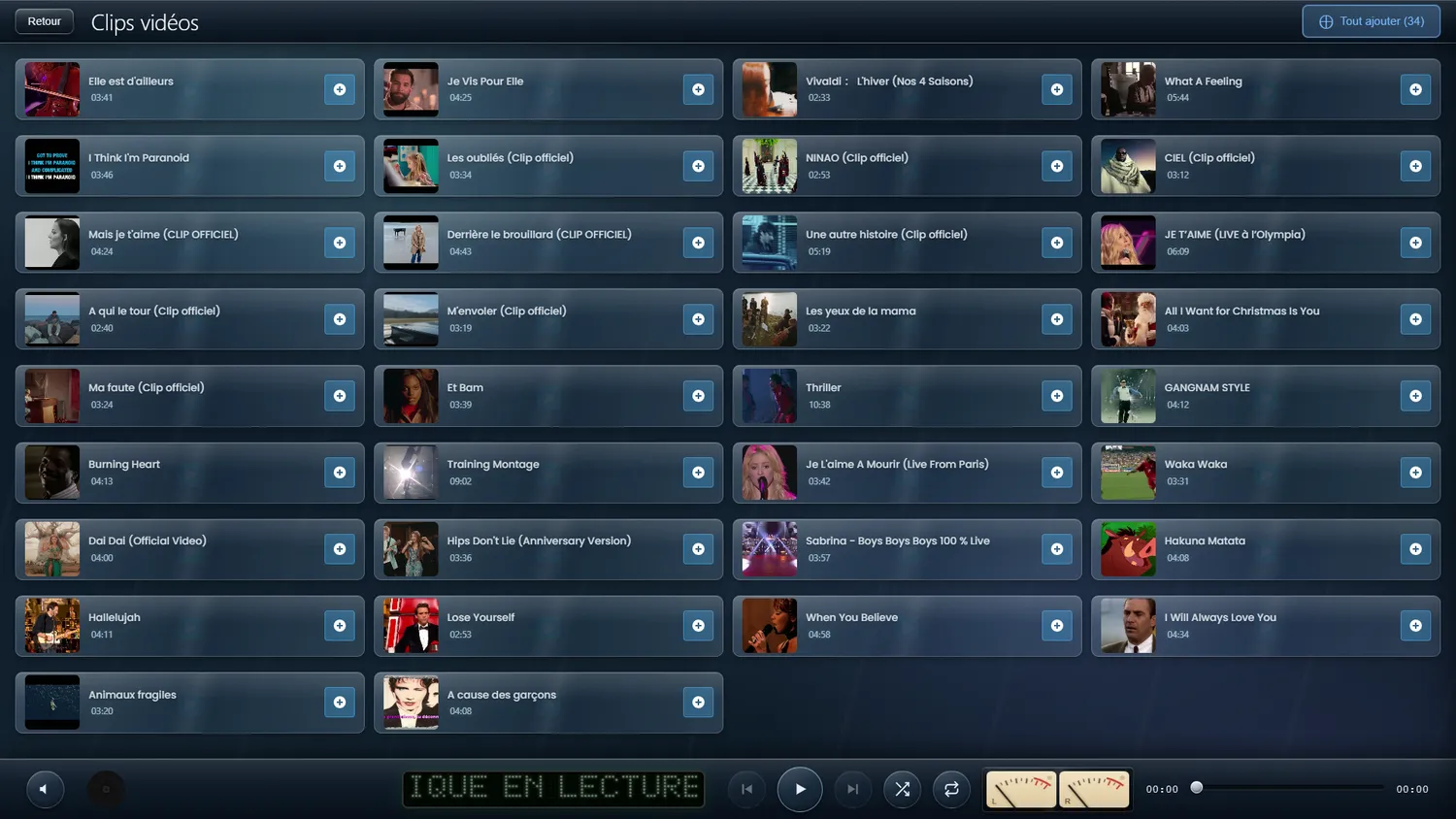
Video thumbnails
A picture for every video, even without artwork
When there is no picture beside a video file, JukeBox-Cab takes one from the video itself and uses it as the thumbnail. Clips are no longer shown behind a generic icon.
✨ What it gives you
- A representative frame taken from the clip automatically
- A picture placed next to the file (.jpg, .jpeg, .png) still comes first
- Made when the clip is displayed, not during the scan: indexing is never slowed down
- Cached on disk: a new scan regenerates nothing
- The oldest thumbnails are cleared out beyond 10,000