Interface themes
Eleven looks for JukeBox-Cab
Choose from several looks to suit your surroundings, or simply your taste.
✨ What it gives you
- Several ready-made themes
- The change happens at once
- Your choice is remembered in the settings
- The same look across every page
- Matching the look to where the cabinet stands
- Setting it up to your taste
- Keeping things readable whatever the light in the room
Living background
The artist or album picture behind the interface
The artist or album picture found in the matching folder now sits behind the folder view at 20% opacity, which helps you keep your bearings as you browse.
✨ What it gives you
- Easier to tell where you are while browsing
- More to look at as you explore the library
- Artwork and artist pictures given their due
- An opacity low enough not to get in the way of reading
- Finding your way by sight
- Recognising artists and albums at a glance
- A richer experience while browsing
Custom skins
Your own artwork behind the grid labels
You can set pictures of your own to act as decorative labels, with the title, the artist and the rest shown on top. Two separate images can be set: one for the album and artist tiles, another for the track tiles.
✨ What it gives you
- PNG images with transparency, for a finished look
- Each piece of text placed exactly (in %) with sliders
- Size and colour set for each piece of text
- An LED lighting effect around the edge (colour and brightness adjustable)
- Presets: save as many arrangements as you like
- Partial updates: only what you changed is updated
- The preset in use is marked with ▶ in the list
- Jukebox cabinets with a look of their own
- A themed dressing (a party, a bar, an event)
- Fitting in a vinyl-label skin
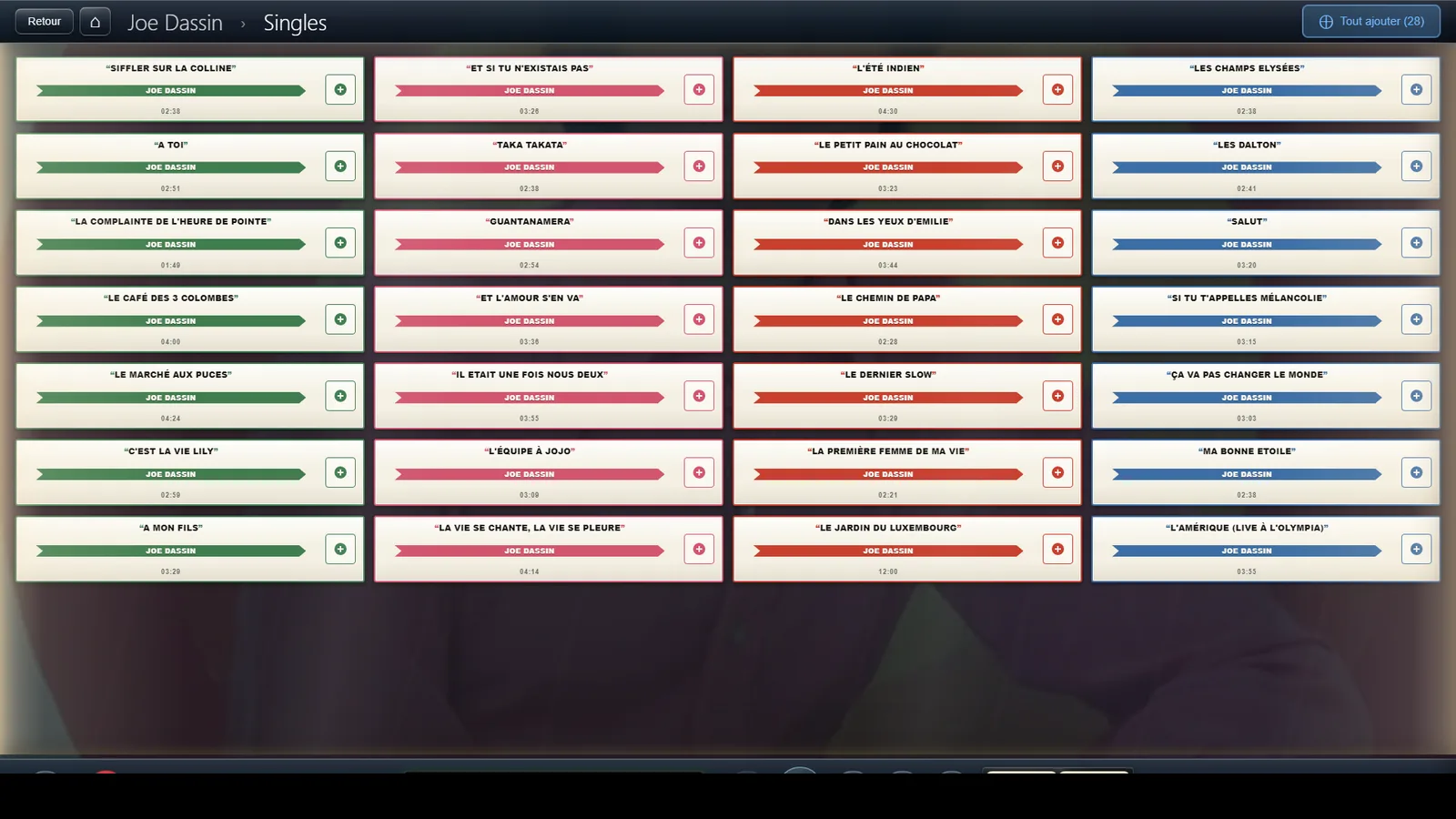
Tile shape
The silhouette of the covers in the grid
Independently of the skin, the shape decides how the covers look. The two settings combine freely: the skin sets the mood, the shape sets the silhouette.
⚙️ Options
Square
The original look
Single
The cover becomes the centre label of a record, grooves and all
Record only
The same record, sitting on the background, with no tile around it
Record and cover
A vinyl sticks out beside a cover that stays square, and therefore fully readable
Disc
A round cover ringed in the colours of the theme
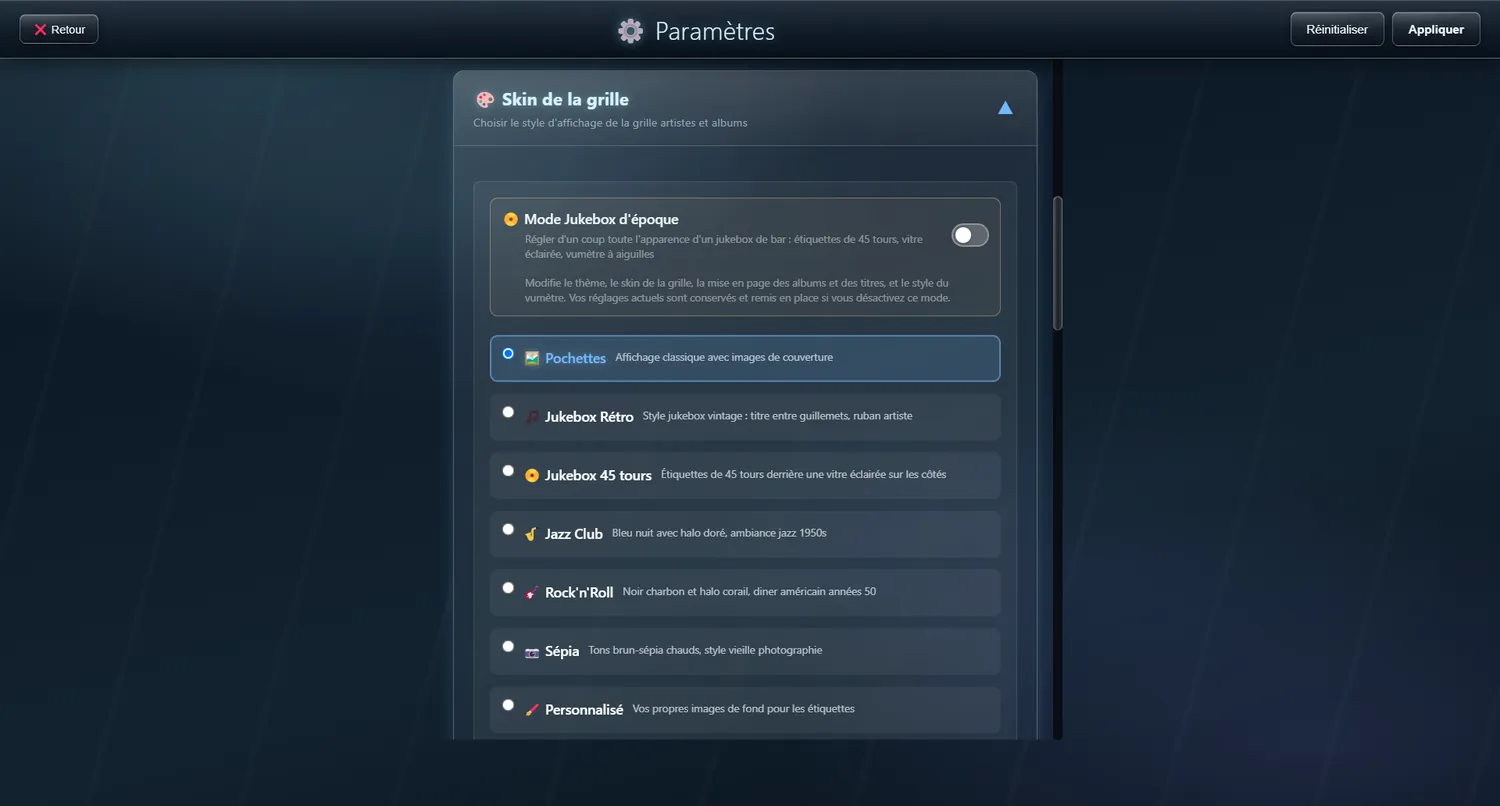
Vintage jukebox mode
The whole look of a bar jukebox, from a single switch
One switch sets the theme, the skin, the VU meter and the layout all at once, to give the look of a bar jukebox: record labels behind lit glass, needle VU meter, a dense grid.
✨ What it gives you
- One move instead of five settings to tune to each other
- Your earlier settings are kept, and put back if you switch it off
- It touches nothing else: credits, folders and Top Mix stay as they are