Database housekeeping
Full control over your indexed library
⚡ What you can do
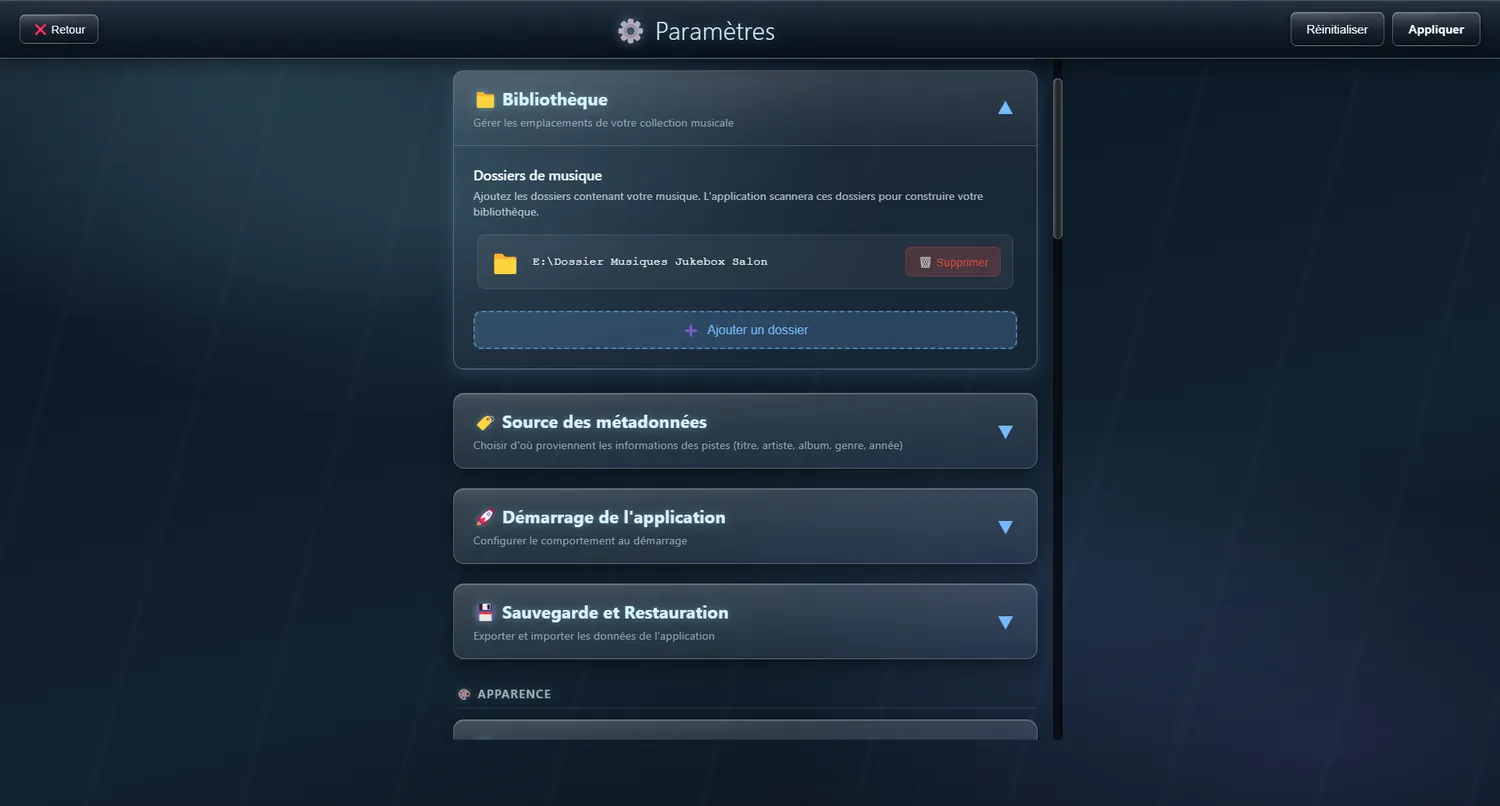
Full library scan
Start a complete scan again
When to use it: When you want to wipe the whole database; the play counts go back to zero
Partial library scan
Scans only what has changed or been added
When to use it: After adding new files, or making changes
Use the existing one
Load the library already indexed
When to use it: Nothing has changed since the last scan
- Format : SQLite
- Location : %APPDATA%/JukeBox-Cab/jukebox.db
- Tables : artists, albums, tracks, playlists, settings
Settings
Your preferences are kept and restored on their own
All your settings are saved to a JSON file and read back at every start. The settings page folds into sections so you can find your way around.
%APPDATA%/JukeBox-Cab/settings.json
📦 What is included
- Music folders
- Display preferences
- Screen setup
- Audio settings
- Metadata preferences
- Web radio preferences
- Theme and appearance
- Interface language
- Streaming applications
- Shutdown options
Turning off the on-screen keyboard
Switch it off if you already have a physical keyboard
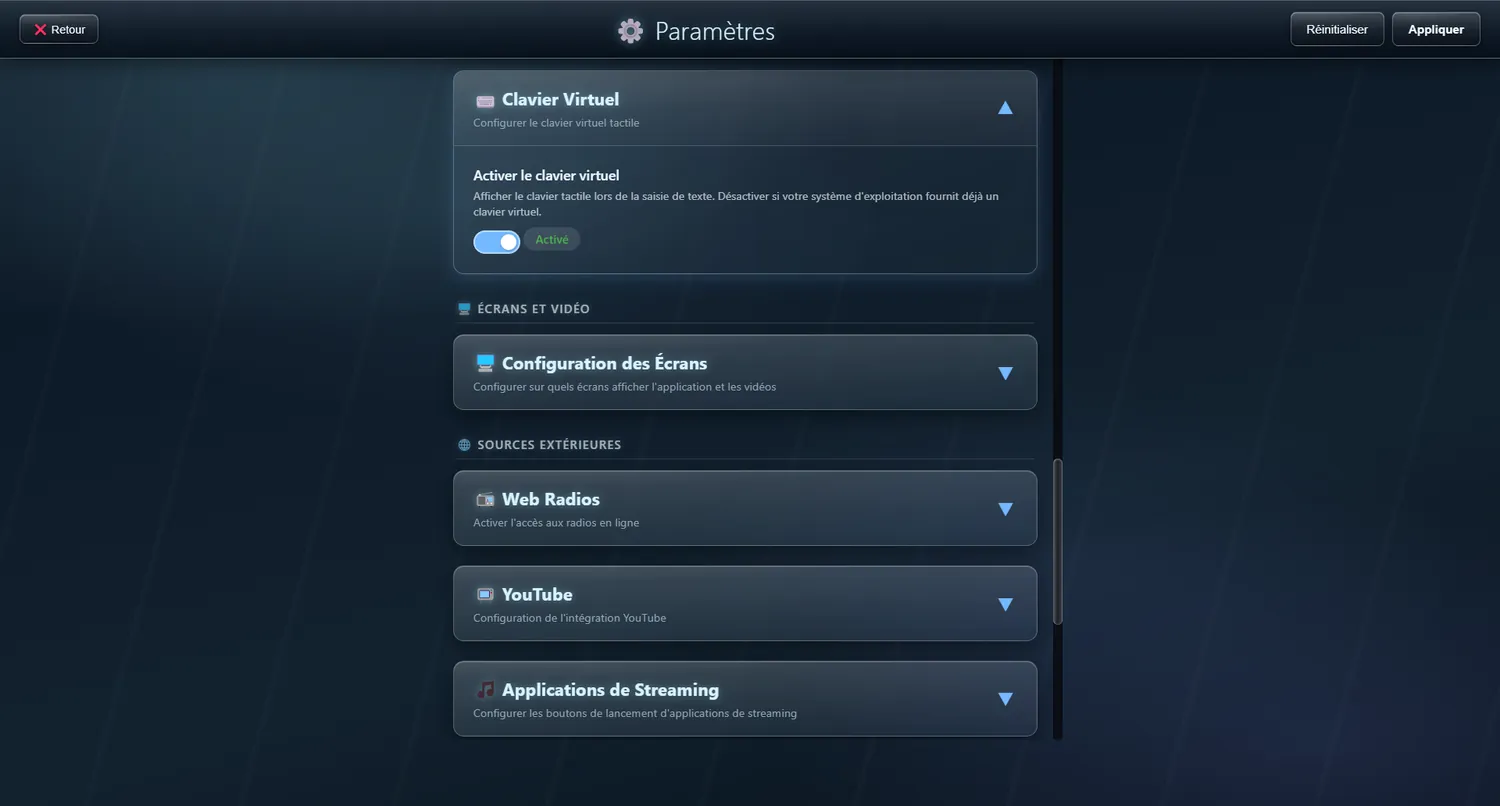
JukeBox-Cab has its own on-screen keyboard for typing on a touchscreen, chiefly for search. If you already use the Windows touch keyboard, you can switch the JukeBox-Cab one off and avoid seeing two at once.
✨ What it gives you
- No more two keyboards on screen at the same time
- Works alongside the native Windows touch keyboard
- A simple on/off setting
- Nothing is lost — you can still type through Windows
- Touchscreens with the Windows keyboard already on
- Windows tablets with the system keyboard
- Anyone who prefers the standard Windows keyboard
Skipping the scan screen
Start straight into your existing library
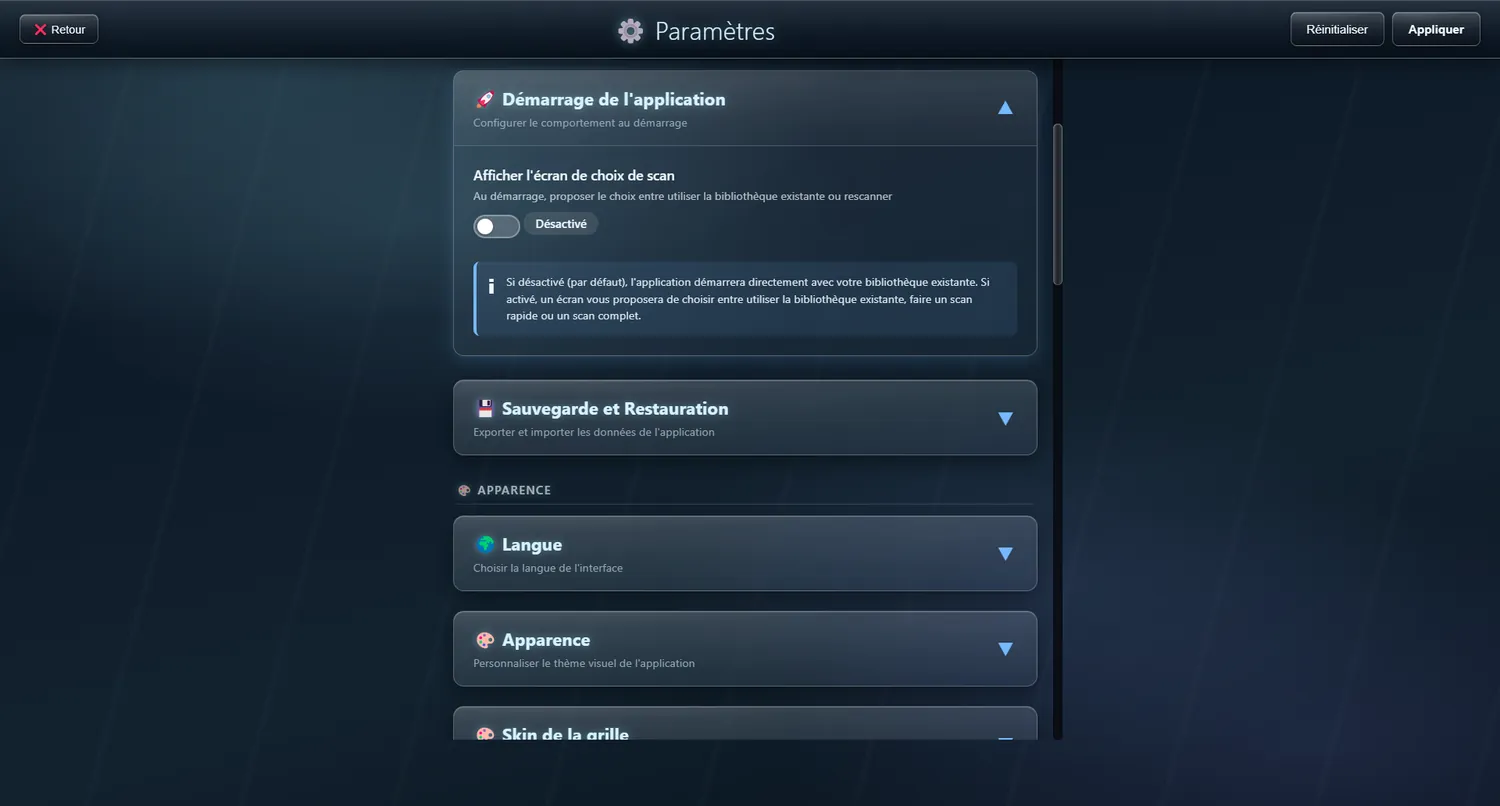
A setting hides the scan confirmation screen at startup. Off by default, so the application opens straight onto your existing library and your music is there at once.
✨ What it gives you
- The application starts in no time
- Your library is there immediately
- Ideal for arcade cabinets and kiosks
- No pointless screen at every launch
- Set it to suit how you work
🔧 Modes
The default (recommended)
The application opens straight onto the library it already has
With the scan screen
Shows the choice screen at startup
- 0 : Load the existing library
- 1 : Run a quick scan (new files)
- 2 : Run a full scan (start over)
- Arcade cabinets given over to music
- Permanent installations (living room, bar, games room)
- Anyone whose library rarely changes
- When the music has to be there at once
- Kiosks and public installations
Backup and restore
Save everything, and put it back
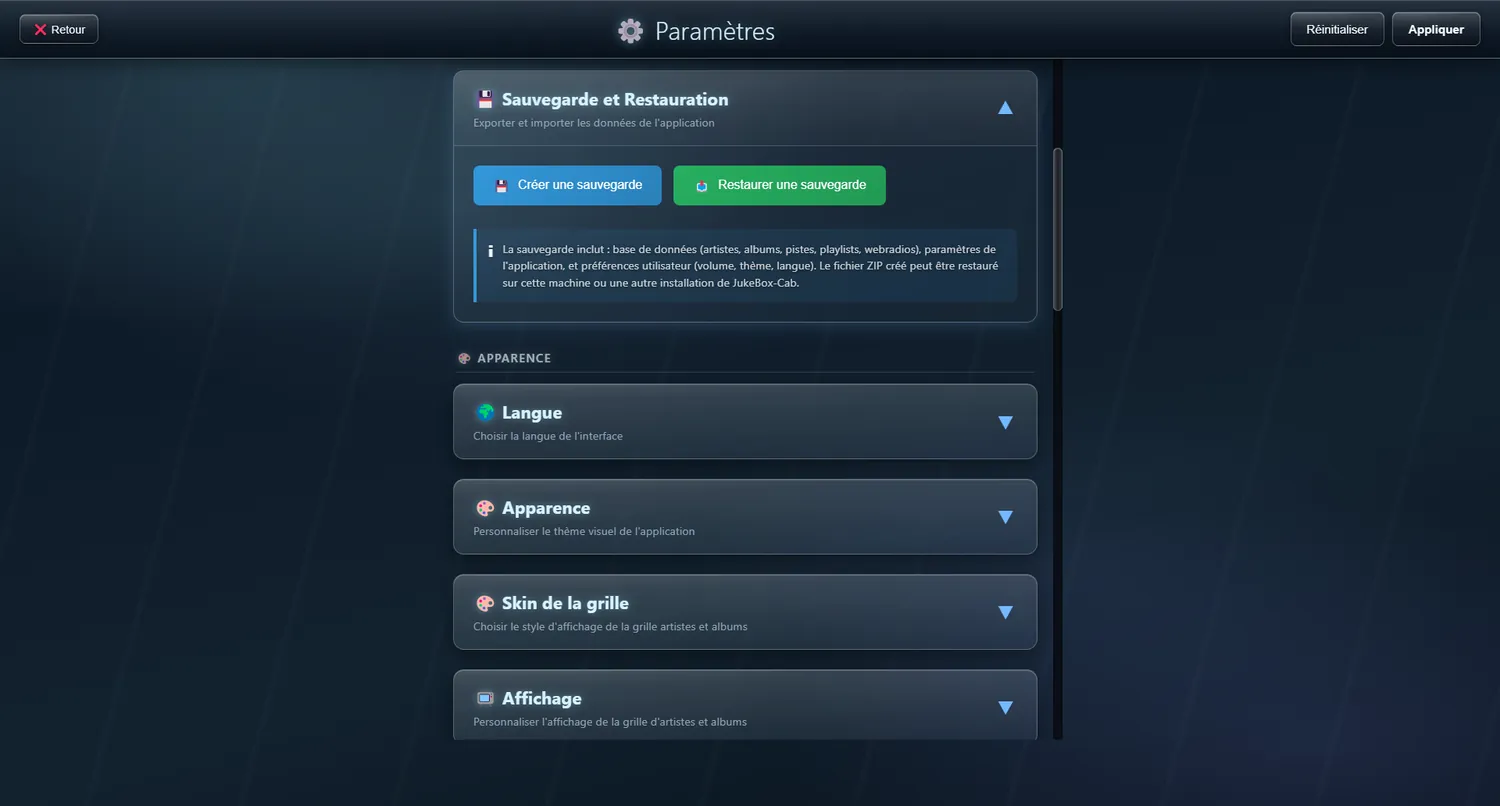
A full backup system lets you export and bring back all your data, settings and preferences — to move to another PC, or to pick up where you left off after a reinstall.
✨ What it gives you
- A full backup in one click
- All your data back quickly
- An easy move to another PC
- Protection against losing your work
- Exported in a portable format
- Moving to a new PC
- Reinstalling Windows
- A regular backup, just in case
- Sharing a setup between several installations
- Getting going again after a problem